Monitoring
The Calls → Monitoring section is used for real-time control of your call center. It shows the current agent workload, the state of the lead queue, and the order in which leads are being processed.
After reading this article, moderators and admins will be able to check:
- who is currently working and what status they’re in,
- how many leads are in the queue and why some of them aren’t being processed,
- which leads are being handled right now and with what priority.
It also helps you react quickly when the queue starts to overload.
Page layout
The page consists of three main blocks:
- Agents
- Queue status
- Current lead queue
Agents
At the top of the page, there’s a list of all agents split into two tabs: At work and Not at work. Each agent card shows their status, call handling mode, what they’re currently doing (call in progress, after-call work, break, etc.) and for how long, plus their workload percentage.
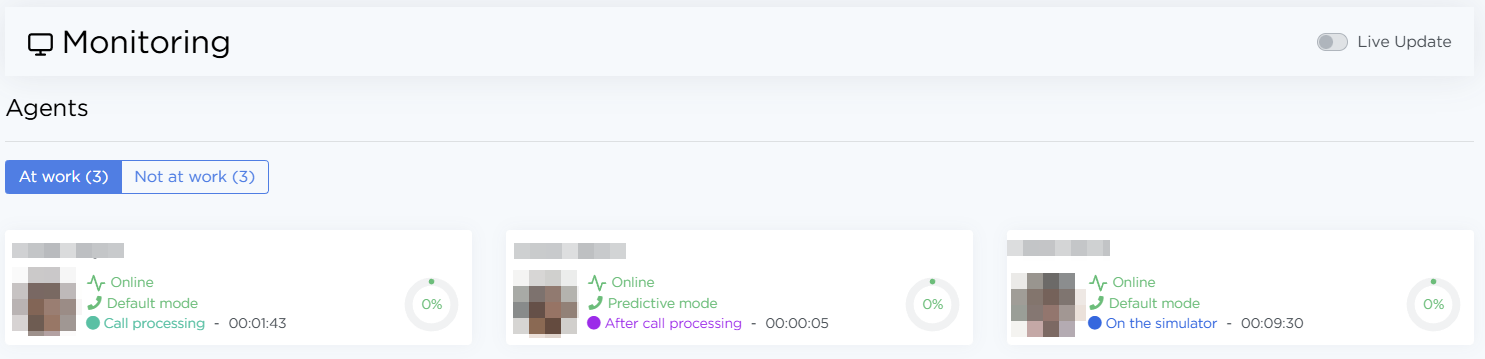
Above the list, there’s the Live Update toggle. When it’s enabled, agent statuses and call handling modes update live. The lead queue will also show the dialing status, so it’s clear which agent is calling a lead at that moment.
Queue status
This block shows the current state of the lead queue and helps you quickly understand why some leads aren’t being processed. It includes these metrics:
- Total leads in queue — total number of leads in the system
- Will be processed soon — leads that are ready to be called right now
- In progressing — leads currently being dialed or already in a conversation
- Not processed due to the Call Status settings Order — dialing is disabled in the order settings
- Not processed due to order schedule settings — dialing is blocked by the current working schedule
- Waiting until client's morning — calling is paused because of the client’s local time
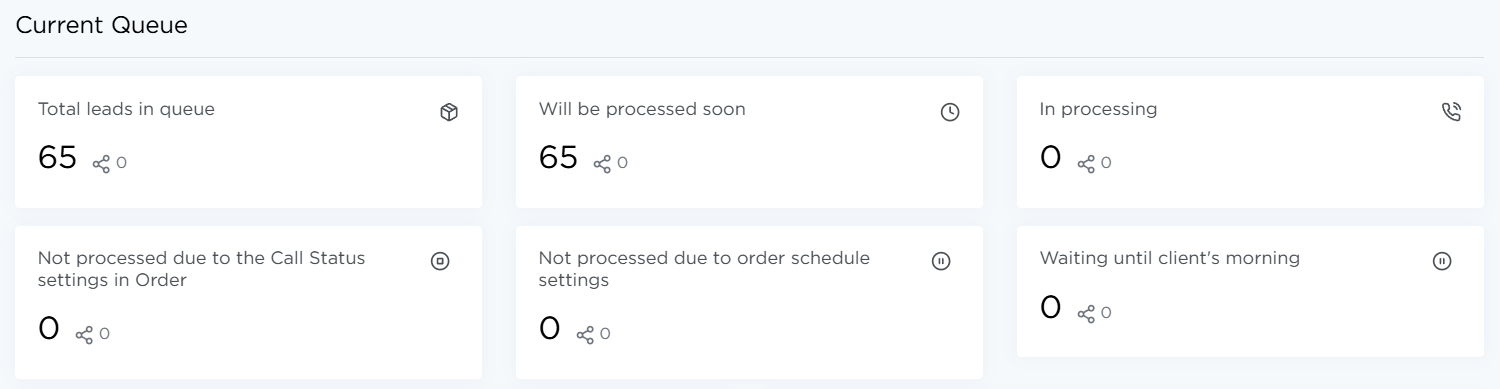
Next to each metric, there’s an extra number showing how many leads in that state can be handled in predictive mode.
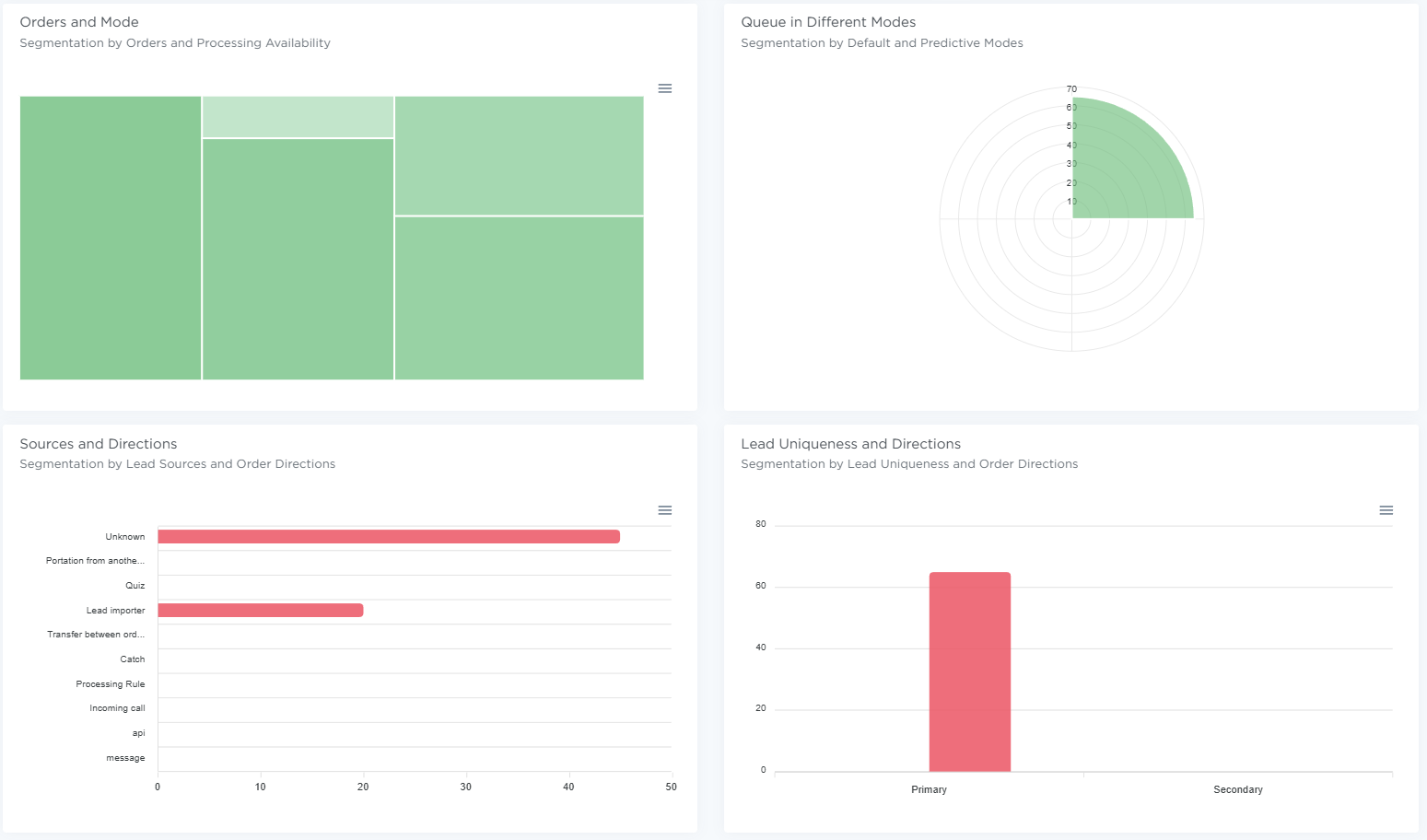
Below that, there are charts:
Orders and Mode — the share of orders in standard mode (green) vs predictive mode (blue). Hover over a rectangle to see the order name.
Queue in Different Modes — the number of active and paused leads in standard and predictive modes. Hover over a segment to see details.
Sources and Directions — the share of sources across all leads.
Lead Uniqueness and Directions — the share of primary vs secondary leads.
Current queue
Below is the list of leads that are in the queue or already being processed. Records are sorted by Priority.
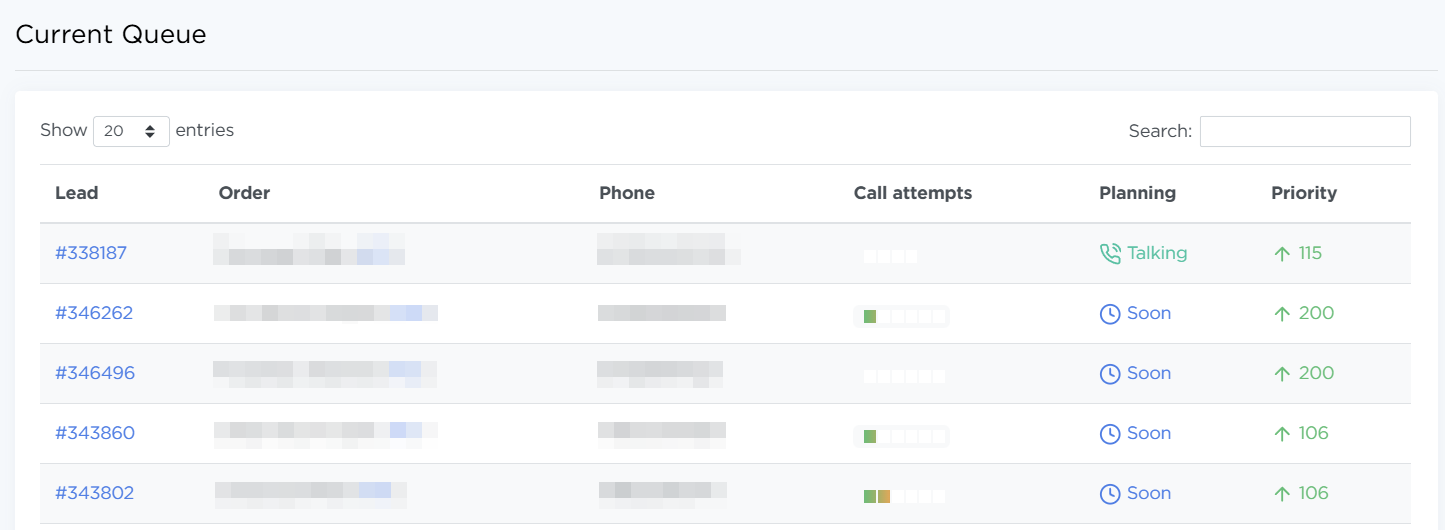
The list includes the lead ID, the order name and ID, the lead phone number, Call Attempts, Planning (current dialing state: Talking, Soon, etc.), and Priority.
How the Current Queue is formed
The queue formation is influenced by two main factors: lead priority and scheduling (i.e., the time of the next call).
Priority
The higher the priority value, the higher the lead will be in the queue. Priority is calculated based on several values:
-
The priority value in the order to which the lead belongs. Priority is configured on the Telephony tab. If you change the priority in an order that already contains leads, the changes will only apply to new leads added to that order.
-
The priority value set during lead import. If you select Standard, 8 will be added to the priority value. This value only applies to the first dialing attempt.
-
The presence of an incoming call from the customer. If there was an incoming call, 100 will be added to the priority value.
-
The dialing attempt number:
-
First attempt adds 6
- Second attempt — 4
- Third attempt — 3
- Fourth attempt — 2
- Subsequent attempts do not add priority, and it remains as specified in the order.
Scheduling
For each scheduled call time, leads are arranged in a separate queue based on priority. The call time itself is initially set by intervals and may change depending on the call status of the previous attempt:
- Call terminated — +5 minutes
- Hung up — +120 minutes
- Missed by telephony:
- Immediate redial after 5 minutes, regardless of other parameters.
- On the third occurrence, the lead is assigned the status Not target (limit reached) and attempts stop.
How to use Monitoring day to day
- Check Agents when processing speed drops — some agents might be on break or offline.
- Watch Queue status to quickly understand what’s causing the queue to build up.
- Keep an eye on priorities in the lead queue when certain leads or orders need to be handled faster.