Domoplaner integration
This integration allows you to transfer leads from Liner to Domoplaner with the ability to configure field mapping.
Pay attention
The Domoplaner integration with Liner is one-way — if you change something in Domoplaner, it will not be reflected in Liner.
Connecting the Integration
-
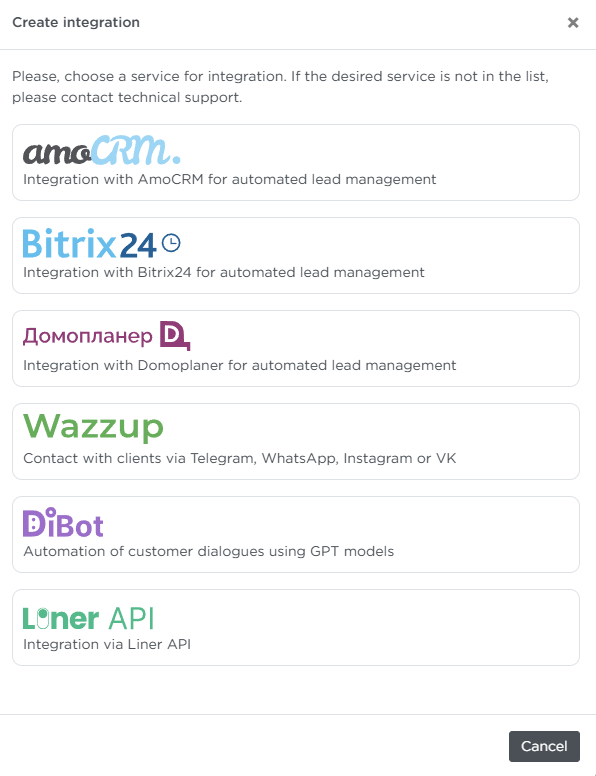
Open Parametres → Integrations and click + Create Integration.

-
Select Domoplaner from the list.
-
Enter the integration Title.
-
Create a token and paste it into the Token to call REST API field.
How to create a token ↓
- Open Settings → Integrations → Other → API.
- Click the button to add a key.
- Specify the key name, set allowed IPs if necessary, and activate the key.
- Copy the automatically generated Request Key — this is your API token.
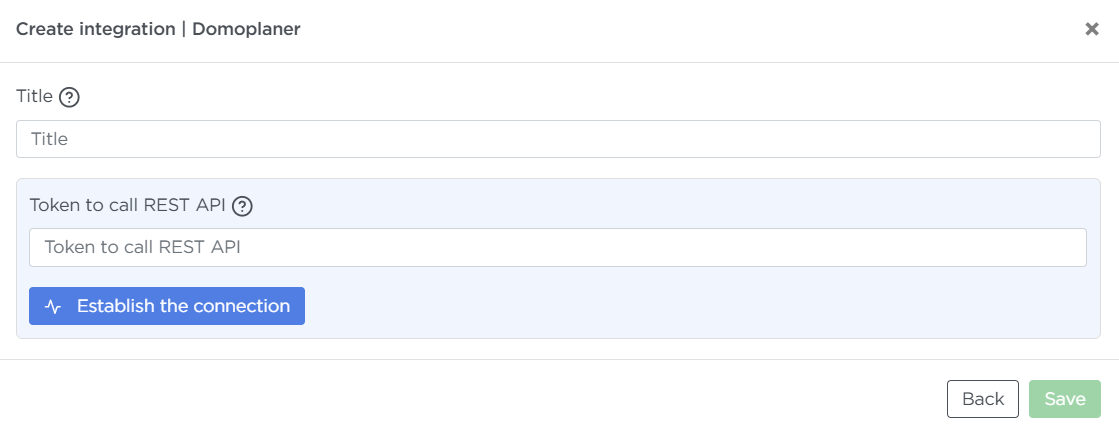
Then click Establish the connection and wait for the connection to be set up.
Filling in Fields
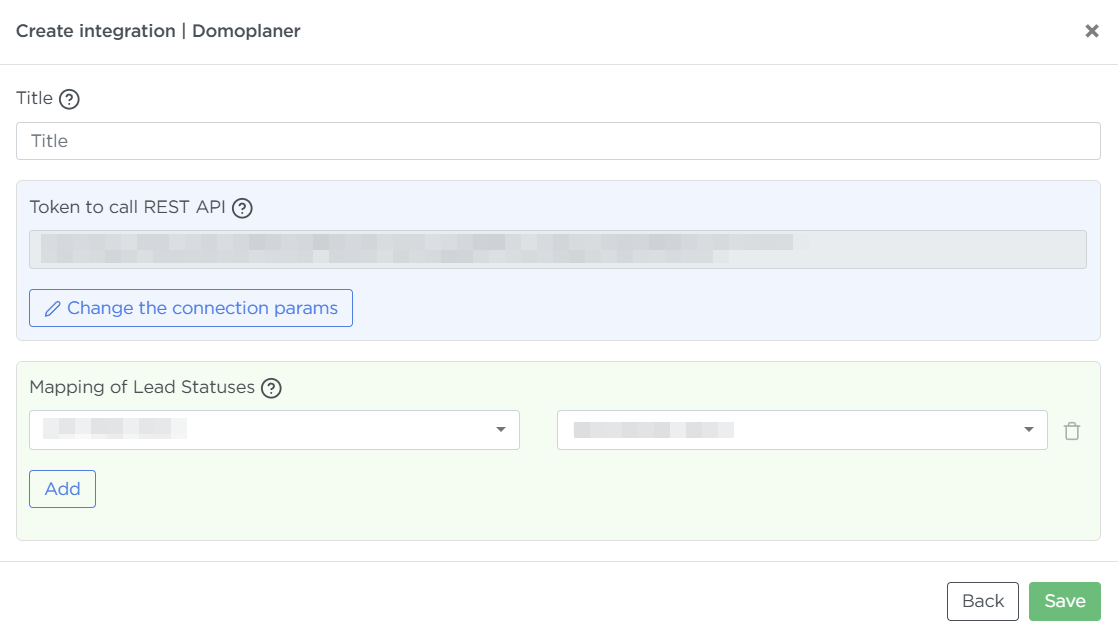
Liner automatically transfers the values of the Name and Contact fields to Domoplaner.
Manually configure lead status mapping: when a lead is first transferred to Domoplaner, it will be assigned the corresponding stage. When the lead status changes in Liner, it will automatically update according to this setting. For the mapping to work correctly, add all possible Liner lead statuses to the mapping list.
Connecting the Integration to an Order
After creating the integration, connect it to an order:
-
Open the required order → Edit → Integrations tab.
-
Select the created Domoplaner integration from the list.
-
Click Save.
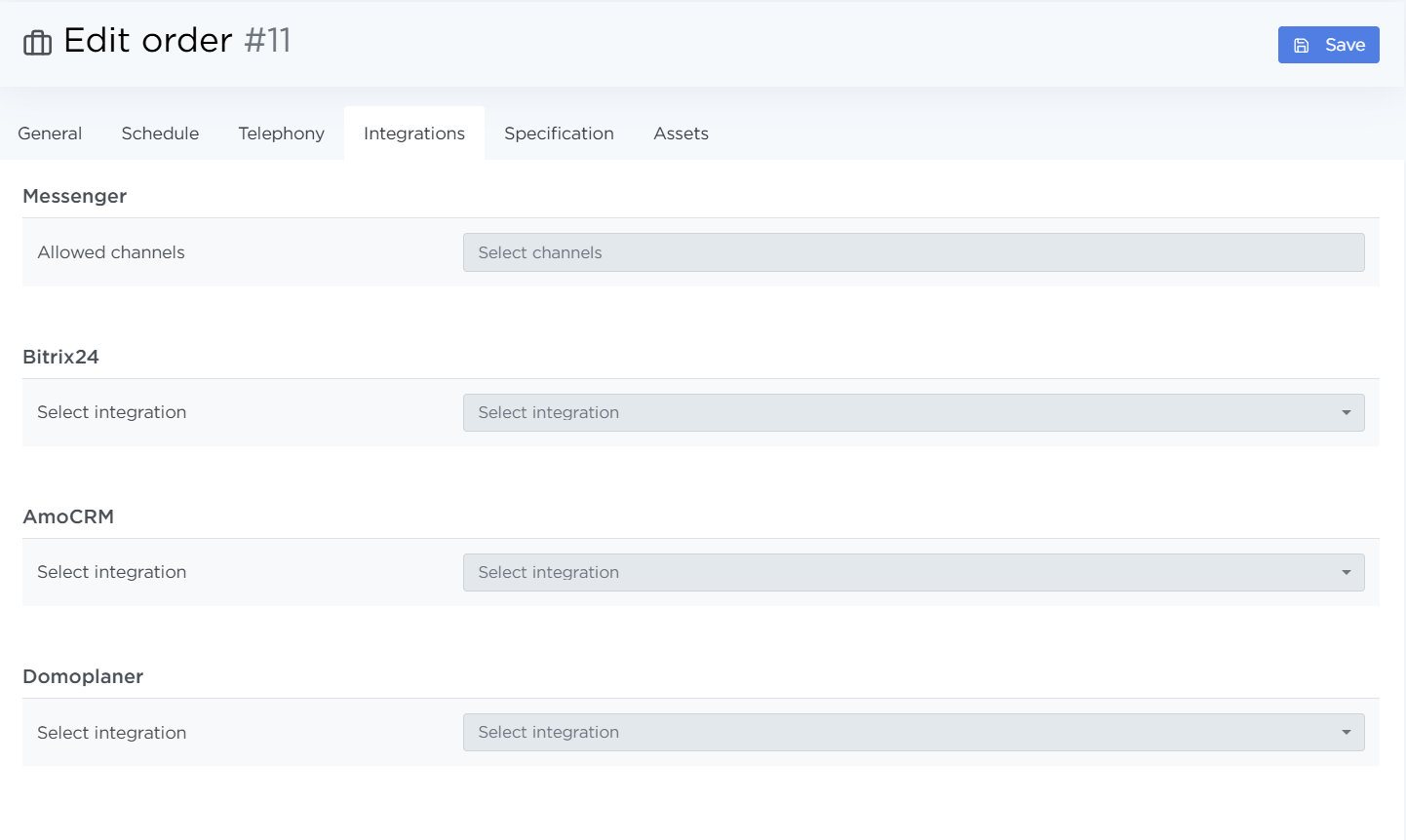
Once the integration is connected to the order, any changes to lead field values in Liner will be synced to the lead fields in Domoplaner.
Managing the Integration
To modify the integration, find it in the list and click the gear icon. Make the necessary changes and click Save.
To remove the integration, click Delete.