Bitrix24 Integration
This integration allows you to send leads from Liner to Bitrix24 through a REST webhook, with flexible settings for responsible assignment and field mapping.
Connecting the integration
-
Open Parametres → Integrations and click Create integration.

-
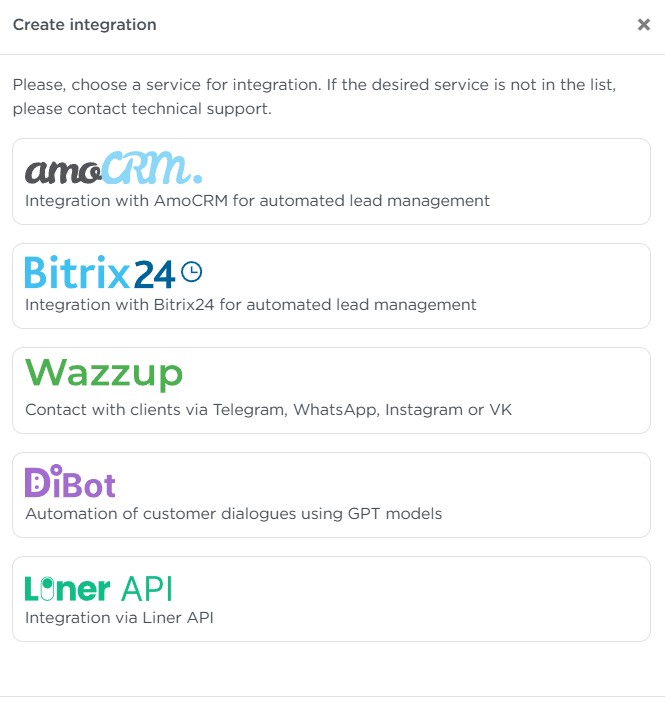
Select Bitrix24 from the list.
-
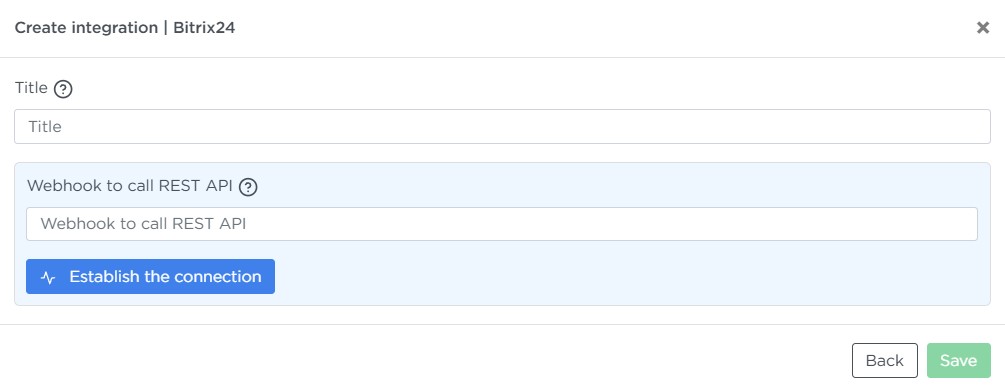
Enter the Title.
-
Create a webhook in Bitrix24, paste it into the Webhook to REST API calls field, and click Establish connection.
-
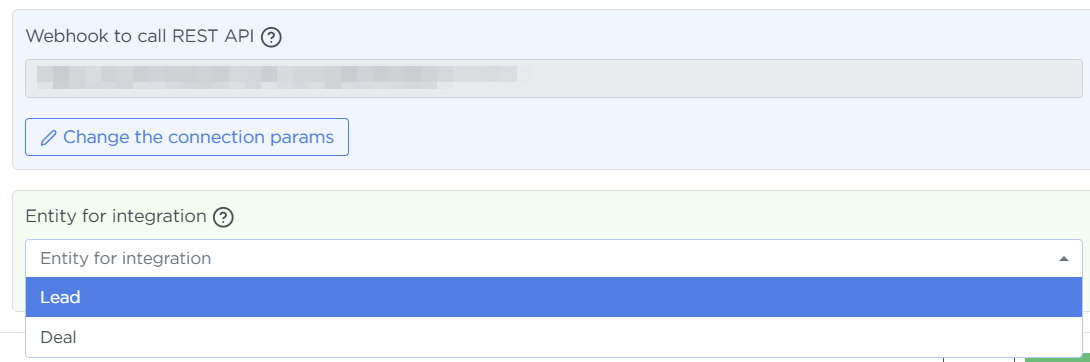
Wait for the connection to complete, then select the Entity for integration — Lead or Deal.
Note
If you choose “Lead,” Bitrix24 will create leads.
If you choose “Deal,” Bitrix24 will create deals.
Configuring integration for the “Lead” entity
-
Enter the Lead/Deal name in Bitrix24 — it can be static or dynamically generated using variables.
-
Select the Method for assigning the responsible user:
- Standard — assigns the user who created the webhook.
- By Email — matches users in Liner and Bitrix24 by email address.
- Specific users — the responsible user is chosen randomly from a selected group.
- Do not change — the Responsible field remains unchanged.
-
Configure Filling in Bitrix24 Lead/Deal fields.
-
Configure Liner Lead field mapping.
-
Configure Mapping of Call Statuses.
-
Configure Mapping of Lead Statuses.
-
Enable Sending additional data if you want to transfer extra parameters.
Configuring integration for the “Deal” entity
-
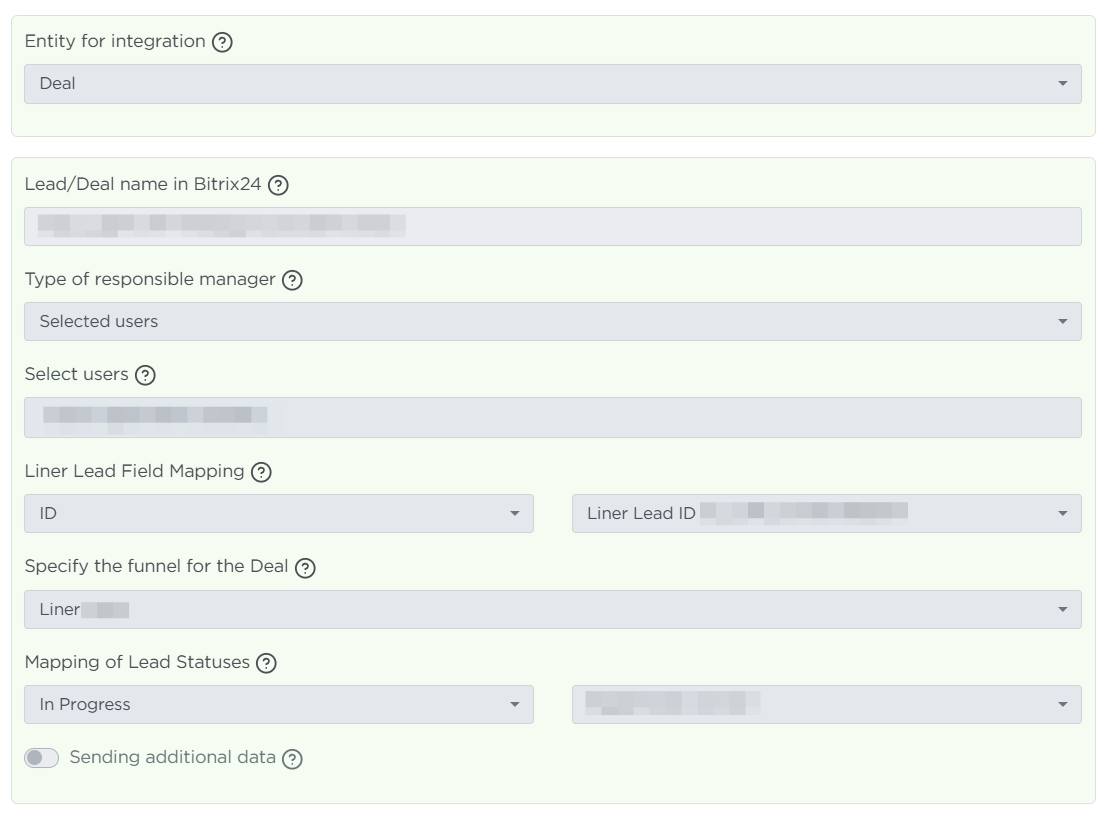
Enter the Lead/Deal name in Bitrix24.
-
Select the Method for assigning the responsible user.
-
Configure Filling in Bitrix24 Lead/Deal fields.
-
Configure Liner Lead field mapping.
-
Select the Specify the pipeline for the Deal, then:
- Configure Mapping of Call Statuses.
- Configure Mapping of Lead Statuses.
-
Enable Sending additional data if you want to transfer extra parameters.
Click Save.
Note
- If you do not specify the lead’s phone number in the mapping, Bitrix24 will create a new contact inside the lead or deal.
- Liner does not send empty values to Bitrix24 — a field must contain a value in Liner for it to overwrite the field in Bitrix. Empty values from Liner cannot erase filled values in Bitrix24.
Connecting the integration to an order
After creating the integration, attach it to an order:
- Open the required order → Edit → Integrations tab.
- Select the Bitrix24 integration you created.
- Click Save.
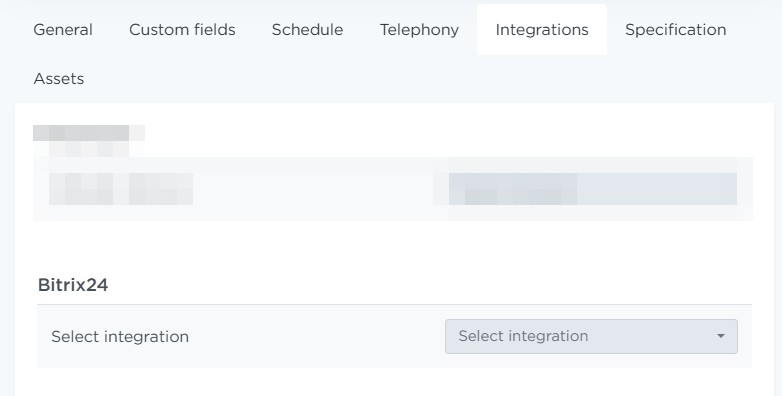
Once the integration is connected to an order, any changes to lead fields in Liner will be automatically reflected in the corresponding lead or deal in Bitrix24. For example, if you update a lead’s name or phone number in Liner, these values will be updated in Bitrix24 as well.
Deleting the integration
To delete the Bitrix24 integration, find it in the list and click Delete.
Integration Process Diagrams
Flowchart "Creating a Lead in Liner"
flowchart TB
    A1(Start of process) --> A2{{Does the Liner lead have a link to an external source?}}
    A2 -->|Yes| A3[Trigger event: lead status change in Liner]
    A3 --> A12(End of process)

    A2 -->|No| A4{{Is there a status mapping between Liner ↔ Bitrix24?}}
    A4 -->|Yes| A5[Fill in fields for lead/deal in Bitrix24]
    A4 -->|No| A12

    A5 --> A6[Map fields Liner ↔ Bitrix24 / apply default values]
    A6 --> A7[Select responsible person according to the scheme]

    A7 --> A8{{Is there a phone number and is “Deal” selected?}}
    A8 -->|Yes| A9[Create a contact in Bitrix24]
    A8 -->|No| A10[Skip contact creation]

    A9 --> A11[Create a lead or deal in Bitrix24]
    A10 --> A11
    A11 --> A12(End of process)
Flowchart "Changing Lead Status in Liner"
flowchart TB
    A1(Start of process) --> A2{{Does the Liner lead have a link to an external source?}}
    A2 -->|No| A3[Trigger event: lead creation in Liner]
    A3 --> A12(End of process)

    A2 -->|No| A4{{Is there a status mapping between Liner ↔ Bitrix24?}}
    A4 -->|Yes| A5[Fill in fields for lead/deal in Bitrix24]
    A4 -->|No| A12

    A5 --> A6[Map fields Liner ↔ Bitrix24 / apply default values]
    A6 --> A7[Select responsible person according to the scheme]

    A7 --> A11
    A11 --> A12(End of process)
    A11[Update lead or deal in Bitrix24]
Flowchart "Changing Client Phone Number or Name in a Liner Lead"
flowchart TB
    A1(Start of process) --> A2{{Does the Liner lead have a link to an external source?}}
    A2 -->|No| A5
    A2 -->|Yes| A3{{Does the Liner lead have a phone number and is the “Deal” entity selected in the Bitrix24 integration?}}
    A3 -->|Yes| A4[Update contact in Bitrix24]
    A3 -->|No| A5
    A4 --> A5
    A5(End of process)
Flowchart "Note in a Liner Lead"
flowchart TB
    A1(Start of process) --> A2{{Does the Liner lead have a link to an external source?}}
    A2 -->|No| A5
    A2 -->|Yes| A3[Send note to the Bitrix24 activity feed]
    A3 --> A5
    A5(End of process)
Flowchart "Call in Liner"
flowchart TB
    A1(Start of process) --> A2{{Does the Liner lead have a link to an external source?}}
    A2 -->|No| A5
    A2 -->|Yes| A3[Send link to Liner call recordings to the Bitrix24 activity feed]
    A3 --> A5
    A5(End of process)