AmoCRM Integration
This integration allows you to send leads from Liner to AmoCRM, with options for assigning responsible users and mapping fields.
Connecting the integration
-
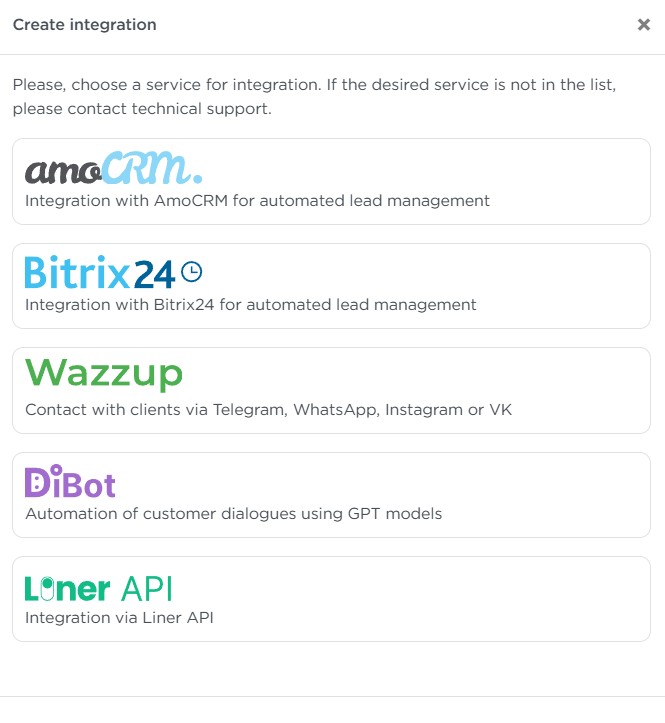
Open Parametres → Integrations and click Create integration.

-
Select AmoCRM from the list.
-
Enter the Title.
-
Enter the address of your AmoCRM account in the API Host field.
-
Create a token and paste it into the API Long-term Token field.
How to create a token ↓
- In AmoCRM, set up an external integration.
- Grant access to the account data during setup.
- Copy the value from the Long-term token field.
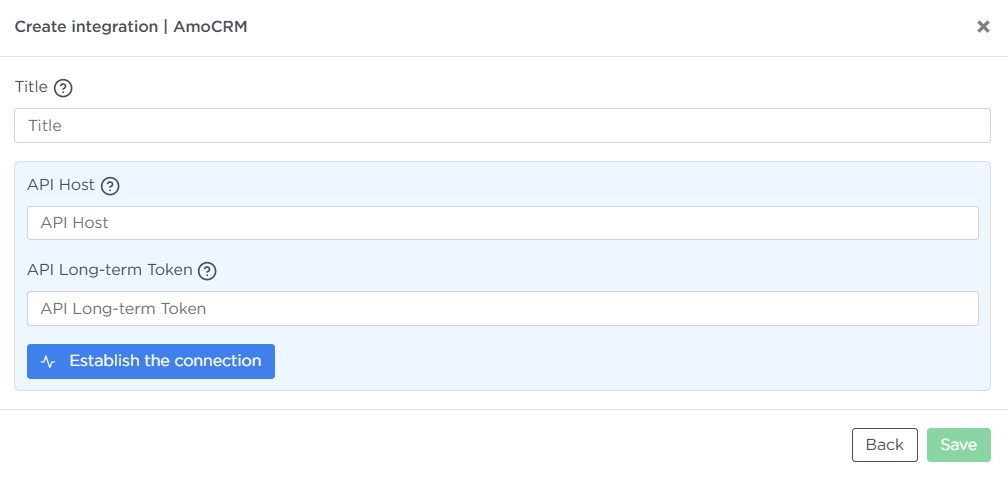
Then click Establish the connection and wait for the connection to complete.
Filling in the fields
-
Fill out the required fields:
-
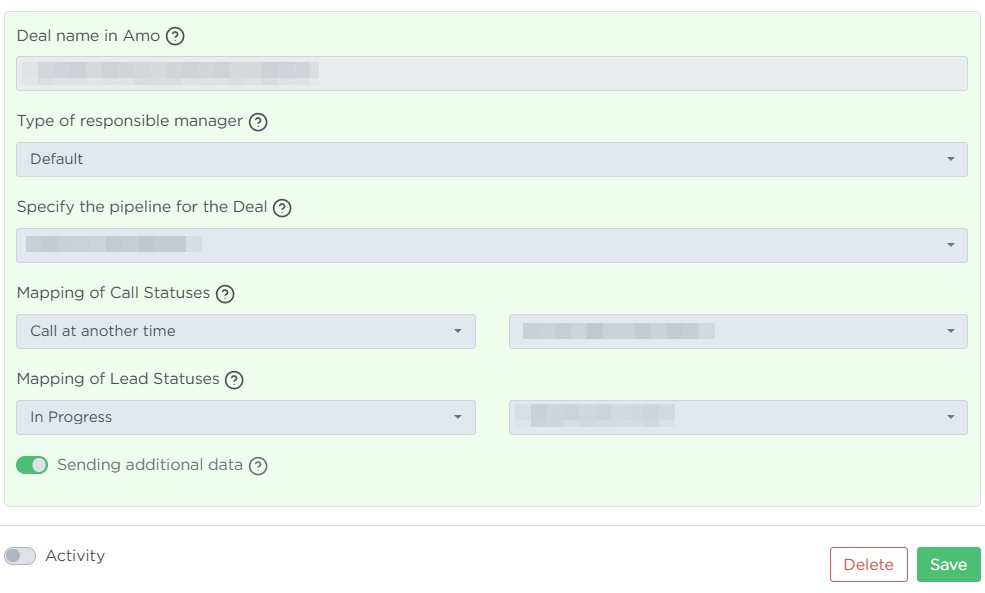
Deal name in Amo — enter the name that will be assigned to new deals in AmoCRM. It may be the same for all deals or generated using shortcuts (variables).
-
Type of responsible manager — select how the responsible user will be assigned in the deal:
- Default — the user who created the webhook is assigned.
- By Email — matches Liner users with AmoCRM users by identical email addresses.
- Selected users — the responsible user is randomly chosen from a specified group.
-
Specify the pipeline for the Deal — choose the pipeline in which deals will be created.
-
-
After selecting a pipeline, field mapping settings become available:
-
Lead field mapping — choose an Amo field and specify what should be inserted into it when the deal is created.
For example, the field Number of rooms may always receive 3 if the integration is configured for calls related to three-room apartments. -
Liner lead field mapping — choose a Liner field whose value will be transferred to the corresponding Amo field.
Note
Liner does not send empty values to AmoCRM. A field must contain a value in Liner for it to overwrite the value in Amo.
An empty value in Liner cannot replace a non-empty value in Amo. -
Mapping of Call Statuses — choose a Liner call status to send to a corresponding Amo status.
-
Mapping of Lead Statuses — choose a Liner lead status to send to the lead status in AmoCRM.
To add multiple fields or statuses, click Add.
-
-
Enable Send additional data to transfer extra lead parameters from Liner if matching fields exist in AmoCRM.
-
Click Save.
Connecting the integration to an order
After creating the integration, attach it to an order:
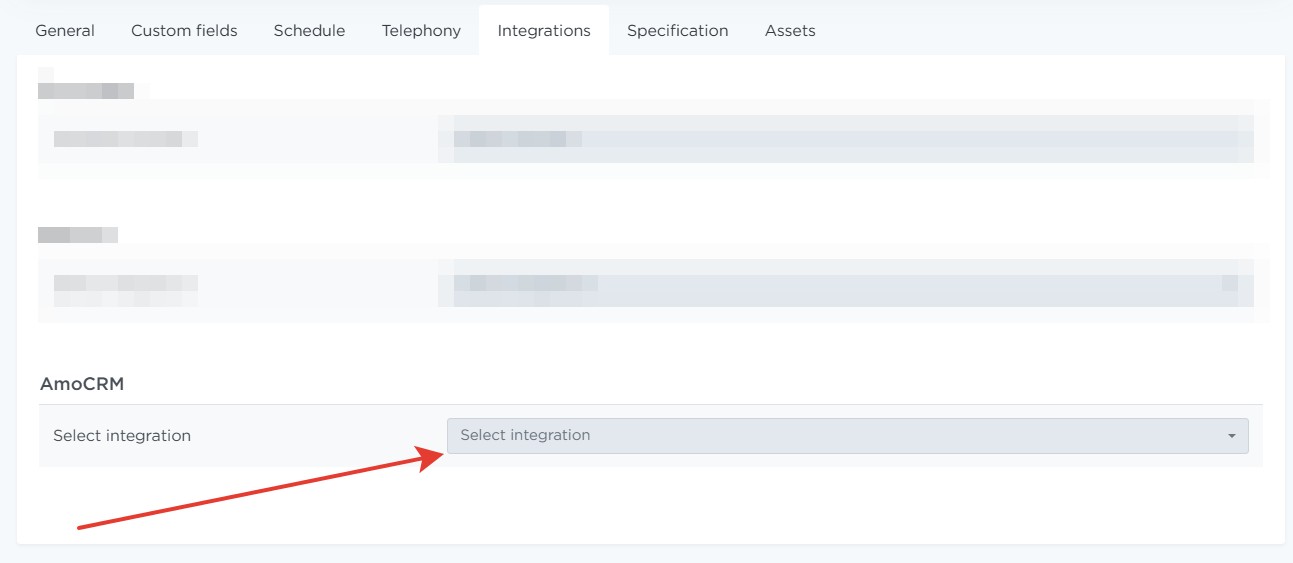
- Open the required order → Edit → Integrations tab.
- Select the newly created AmoCRM integration.
- Click Save.
Once the integration is connected to an order, any changes to lead fields in Liner will be sent to the corresponding lead in AmoCRM.
For example, if you update the lead’s name or phone number in Liner, these values will be automatically updated in the AmoCRM lead.
Deleting the integration
To delete the AmoCRM integration, find it in the list and click Delete.