Custom Fields
Custom fields allow you to add your own parameters for storing additional information about leads. These fields can be filled in during a call or after it ends, and they can also be passed to your CRM via integrations.
For example, you can store the lead source, the customer’s budget, or any other values that need to be tracked. If a custom field is added to an order, it will automatically apply to all leads created under that order.
Creating a custom field
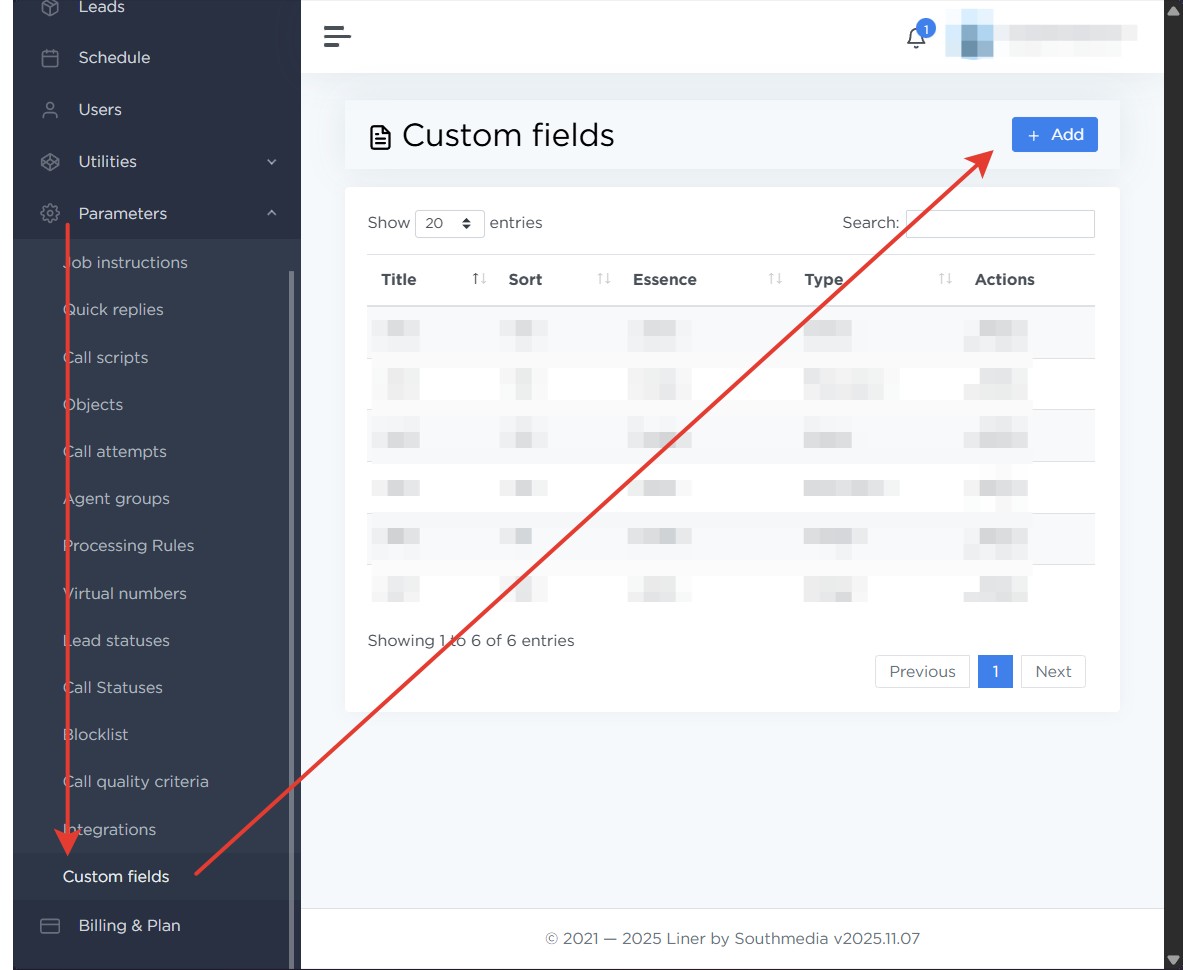
To create a custom field, open Parameters → Custom fields in the left panel, then click Add.
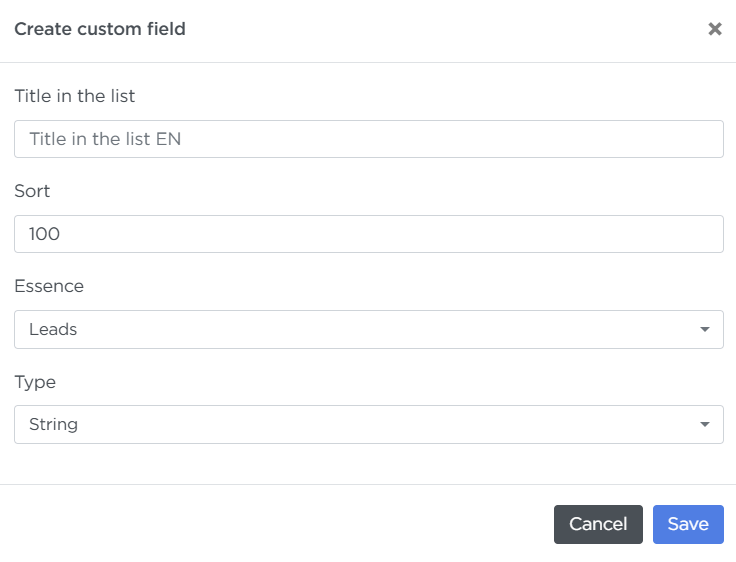
In the window that opens, specify:
- Title in the list — the name you will use to find the field when configuring integrations
- Sort — the field’s priority, which determines its position in the list
- Essence — where the field will be created: in leads or in orders
-
Type — the type of field:
- String — any set of characters
- Integer — a whole number (e.g., number of rooms)
- Float — a number that may include decimals (e.g., apartment size)
- Date — date selection
- DateTime — date and time selection
- Boolean — Yes/No
- Select — selection of one value from a list
- Multiselect — selection of several values from a list
For the last two types, specify parameters for each value: Title, priority (list position), and code.
Pay attention
After the field is created, values of dropdown and multi-select types cannot be deleted — only hidden from the list.
Using custom fields
In an order
To use a custom field in an order:
- Go to Orders.
- Open the required order and click Edit.
- On the Custom fields tab, select the desired value.
There is no need to press Save — the selected value is saved automatically and applied to all leads in the order.

In an existing lead
To set a value for a specific lead:
- Go to Leads.
- Open the required lead.
- On the Custom fields tab, enter a value in the custom field.
This value will be saved for the lead and will be available for transferring to the CRM.
Sending custom fields to the CRM
To send a custom field value to a lead or deal in your CRM, select the field in the Liner lead field mapping section when configuring the integration.