Virtual Numbers
This section shows all virtual numbers used in Liner for both outbound and inbound calls. The article explains how to read the number table, how to filter the list, and which metrics matter for operators, administrators, and moderators.
To view your virtual numbers, go to Parametres → Virtual Numbers.
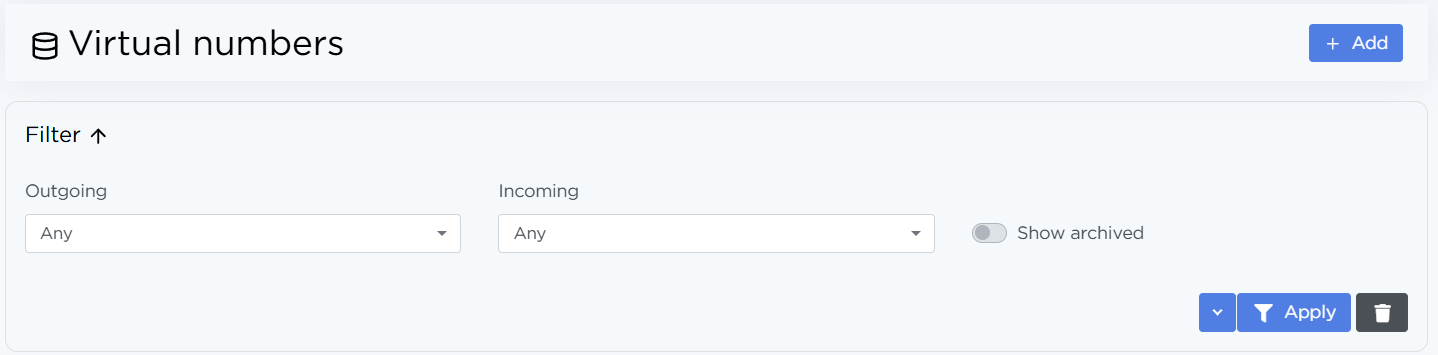
Filters
At the top of the page, you’ll find three filters that help narrow down the list:
- Outbound:
- Any — shows all numbers, regardless of whether outbound calls are allowed
- Disabled — shows numbers with outbound calls blocked
- Enabled — shows numbers that can make outbound calls
- Inbound:
- Any — shows all numbers, regardless of inbound permissions
- Disabled — shows numbers that can’t receive inbound calls
- Enabled — shows numbers that are allowed to receive inbound calls
- Show archived — turn this on to see numbers that are no longer in use but remain stored in the system.
After adjusting the filters, click Apply.
Use the dropdown → Save preset to store your filter set for later.
Virtual number list
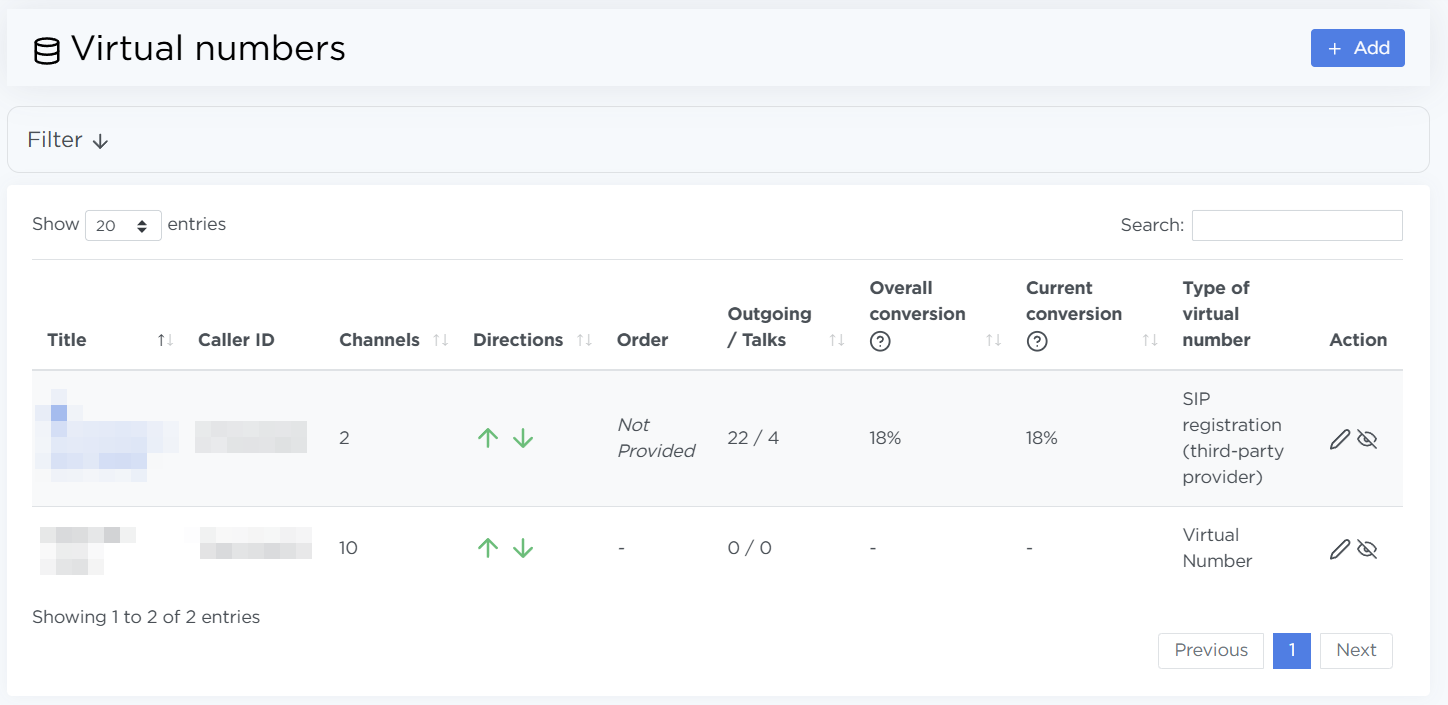
The table contains detailed information and statistics for each number.
-
Title — the display name of the number. It may include notes such as:
- “Default number”
- project name
- internal administrative comments
-
Caller ID — the actual phone number clients see when receiving an outbound call.
-
Channels — the maximum number of simultaneous lines available for that number.
For example, 10 means up to 10 parallel calls at the same time. -
Directions — shown with arrows:
- arrow up — outbound,
- arrow down — inbound.
A green arrow means the direction is enabled; a red one means disabled.
This way, the number can be set to inbound-only, outbound-only, both, or completely blocked. -
Order — if a number is linked to a specific order, you’ll see its ID here.
This matters for inbound calls: when someone calls this virtual number, the system will create a lead in that order (provided the order has an action set for unknown inbound calls).Note
A virtual number can be linked to only one order.
-
Outbound / Talks — statistics in the format
outbound attempts / successful conversations. For example,7718 / 1143means 7,718 outbound attempts and 1,143 completed conversations. -
Overall conversion — the percentage of conversations out of all outbound attempts. This helps assess:
- how effective a number is,
- whether there might be connectivity or carrier issues.
-
Current conversion — the conversation rate calculated over the last 100 calls.
-
Type of virtual number — shows how the number is connected:
- Virtual number — via the default telephony connection
- SIP registration (third-party provider) — through SIP credentials from an external telecom provider
-
Action — buttons for editing or archiving the number
How to use this section
-
Add new virtual numbers using the Add button. More about adding numbers is available on the 👉 Quick start page.
-
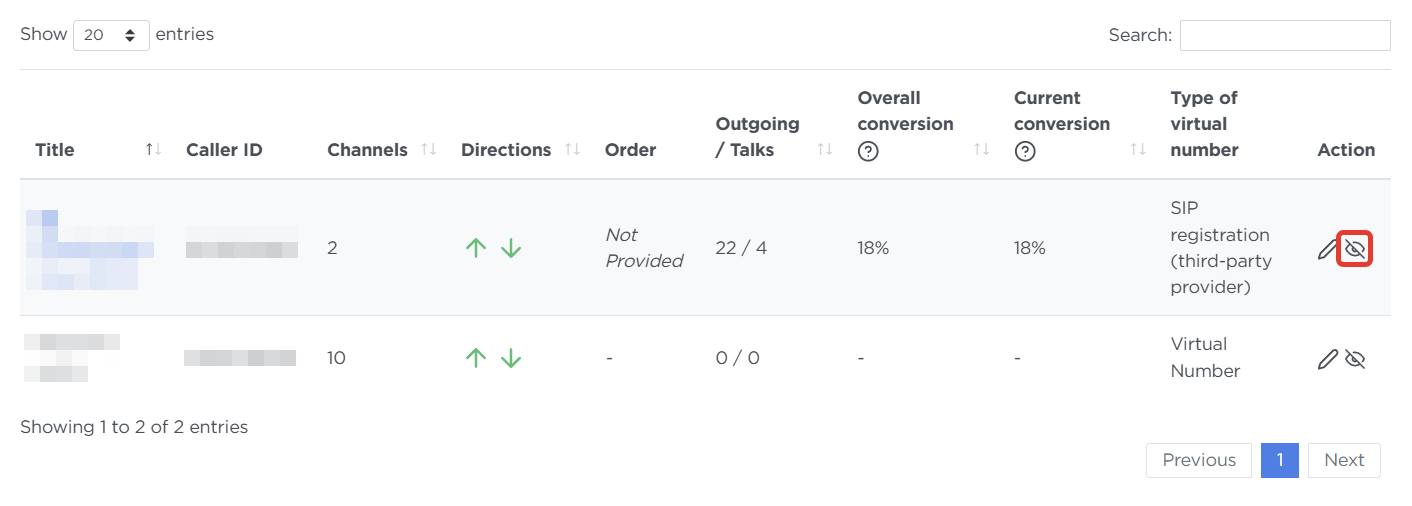
Remove (archive) unused numbers by clicking the eye icon:
-
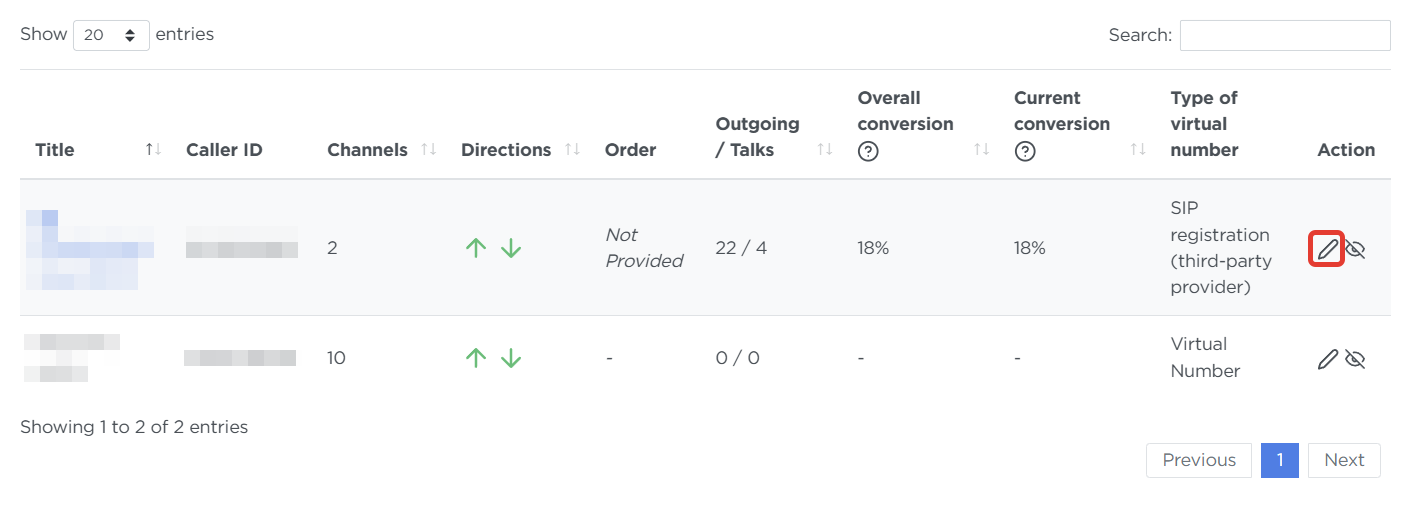
Edit an existing number by clicking the pencil icon:
- For Virtual number, all fields can be edited except Caller ID.
- For SIP registration, all fields can be edited except SIP ID.
-
Set a default number — when creating or editing a number, enable Use as default.
This number becomes the primary fallback: if a number tied to an order is removed, the system will substitute the default number instead.
Only one default number can exist — you cannot assign two. -
Monitor conversion for each number — a drop may indicate:
- connection issues,
- carrier blocking,
- outdated or low-quality numbers.
-
Keep track of load using channel capacity and call volume indicators.
-
Check that each number is linked to the correct order (especially for inbound calls).
-
Review how traffic is distributed across numbers.
-
Ensure numbers with many channels are used efficiently.
-
Watch for anomalies — sudden drops in conversion or spikes in errors.