Users
The Users page shows all Liner accounts: agents (operators), moderators, administrators, and clients. Here you can:
- view user details,
- filter and sort the list by role, activity status, and phone mode,
- see the last login date,
- open a user profile to review or change settings.
After reading this article, it will be clear how to create or find the required account, review its parameters, and switch to editing when needed.
Filter
The filter panel is located at the top of the page and helps quickly narrow down the list of users. The following filters are available:
- Profile — keep only active or only blocked accounts in the list:
- Active
- Blocked
- Any
- Phone status — show only users with a specific call handling mode:
- Standard
- Predictive
- Incoming line
- Outgoing line
- Login (Email) — search field by login.
- Role — show only users with specific roles (multiple roles can be selected).
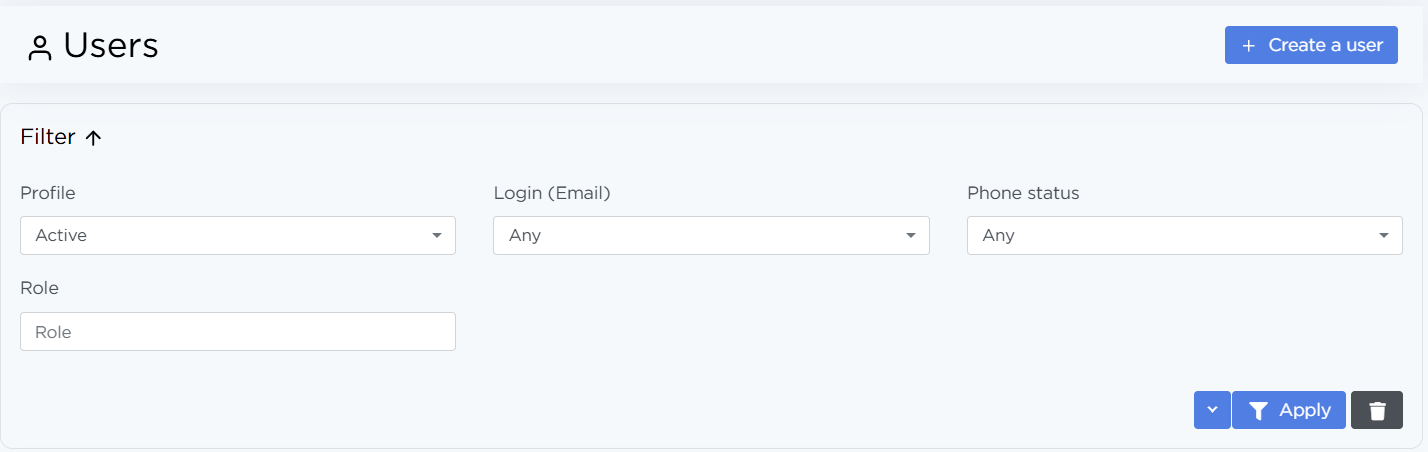
After selecting the required parameters, click Apply to update the list.
Click the down arrow → Save preset to save the selected filters for the current user.
User list
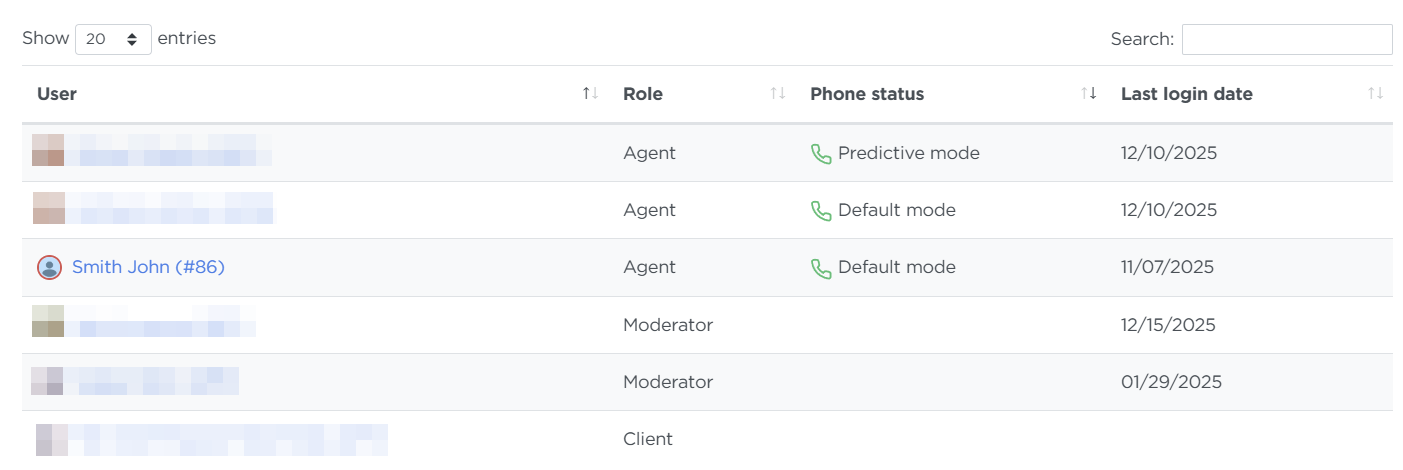
The list is displayed as a table with the following columns:
-
User — name and ID. Click the name to open the user profile.
Blocked users are marked with a red lock icon next to the name.
-
Role — the assigned role that defines access rights.
-
Phone status — call handling mode: standard, predictive, incoming, or outgoing line.
-
Last login date — date of the last authorization.
-
The colored frame around the avatar shows activity status:
- green — the user is currently online,
- red — the user is offline.
To sort the list by any parameter, click the column name.
To search for a user by name or ID, enter the value in the search field.
Creating a user
To create a new user, click Create a user.
More details about user creation are available in the article 👉 Quick Start.
Viewing and editing a user profile
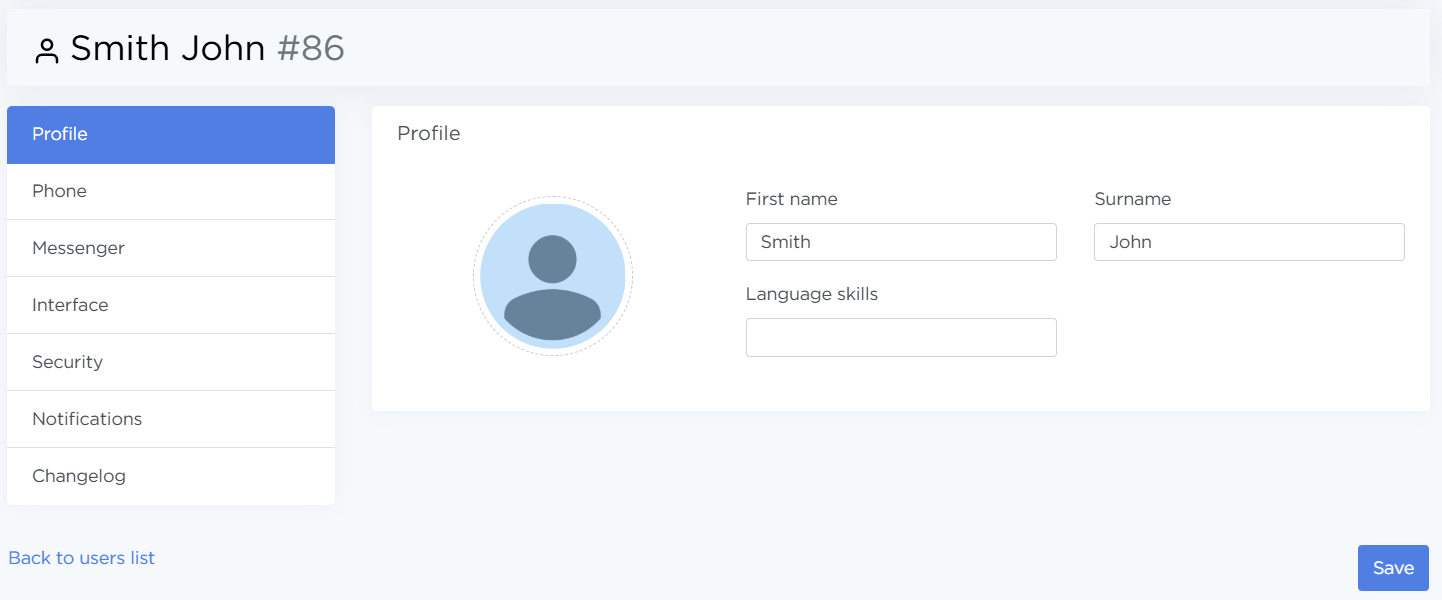
To open a user profile, click the user’s name in the list. The profile consists of several tabs:
- Profile — contains basic information:
- First name and Surname,
- Avatar,
- Language skills.
-
Phone — this is where telephony integration is configured Call handling settings:
- Phone mode — standard, predictive, outgoing only, incoming only,
- Auto answer — automatic connection to a lead can be disabled, instant, or delayed from 1 to 10 seconds,
- Agent status — the default status the agent is in,
- Post-call processing timer — set how much time the agent gets by default for call post-processing.
-
Call simulator — here the trainer is enabled or disabled and its parameters are configured.
Enable the Call simulator enabled toggle to activate the trainer for the user.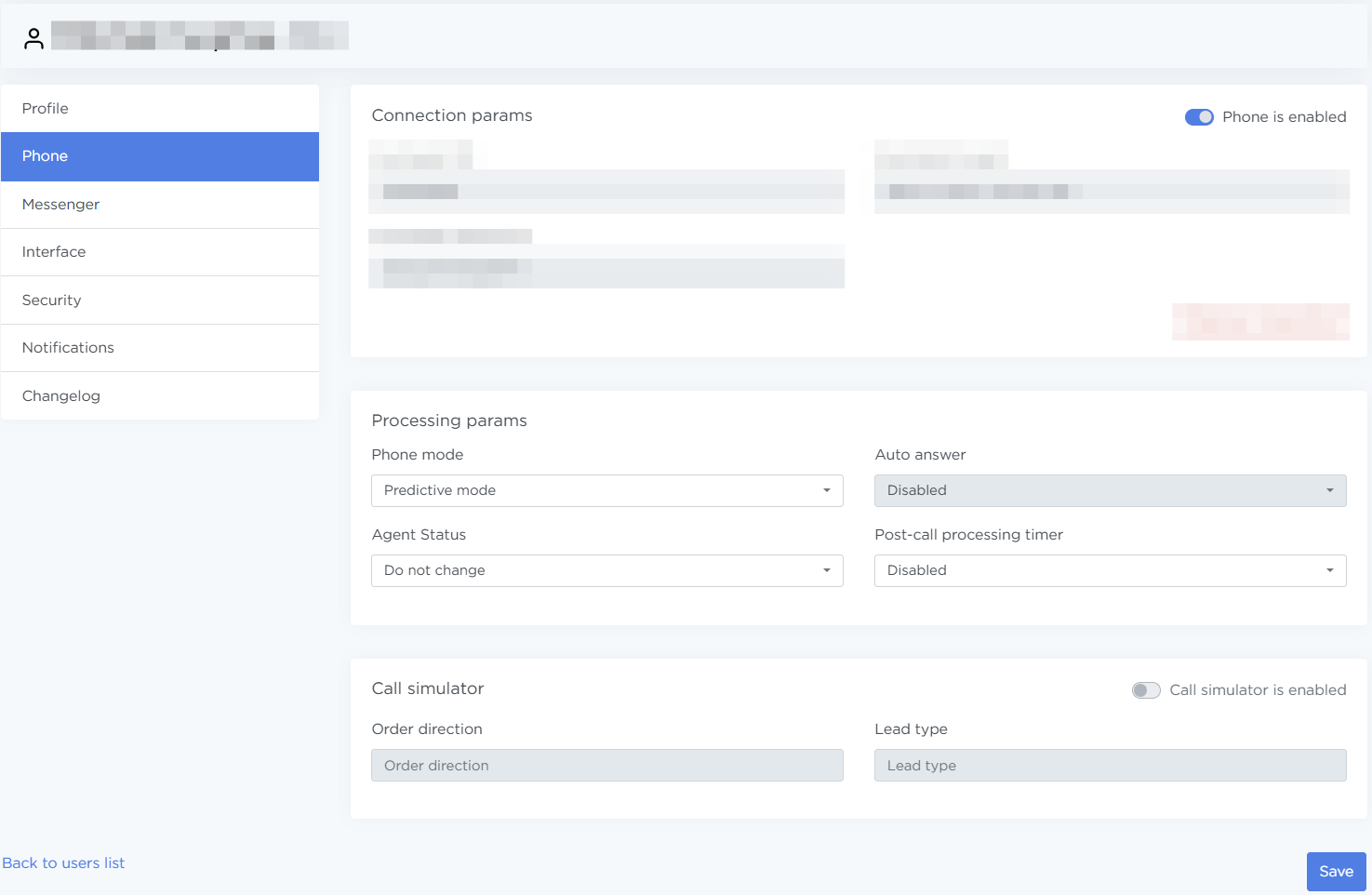
-
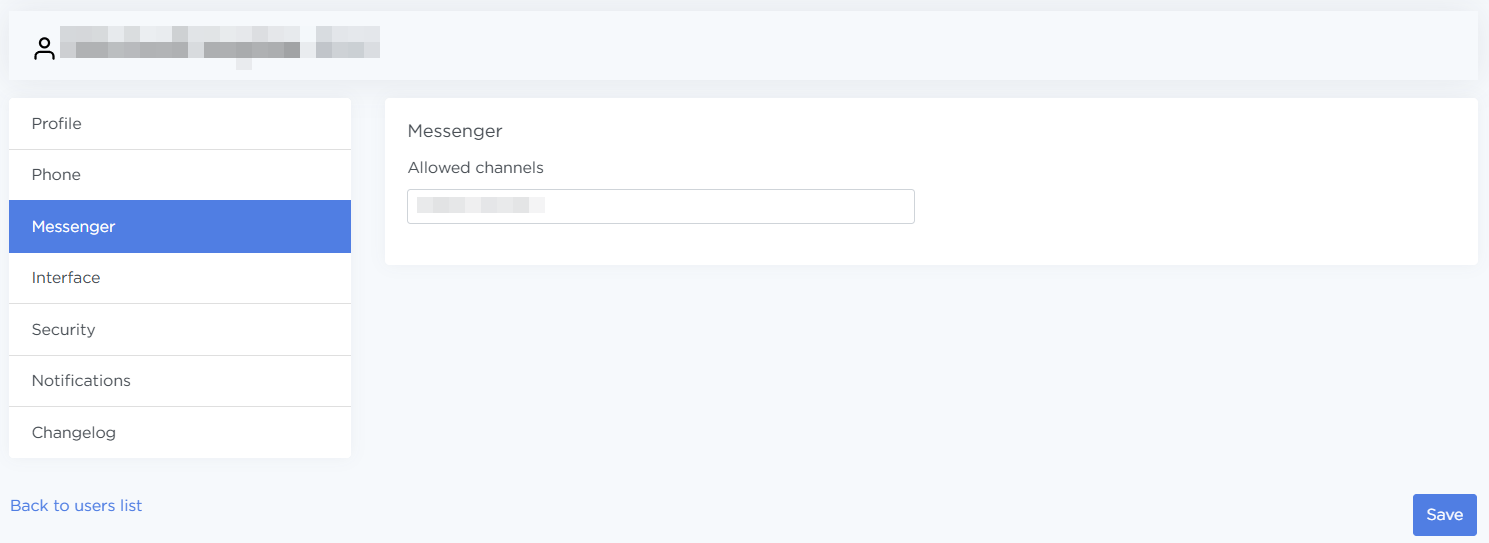
Messenger — configure the user’s access to messenger channels. Select the allowed channels to grant access.
-
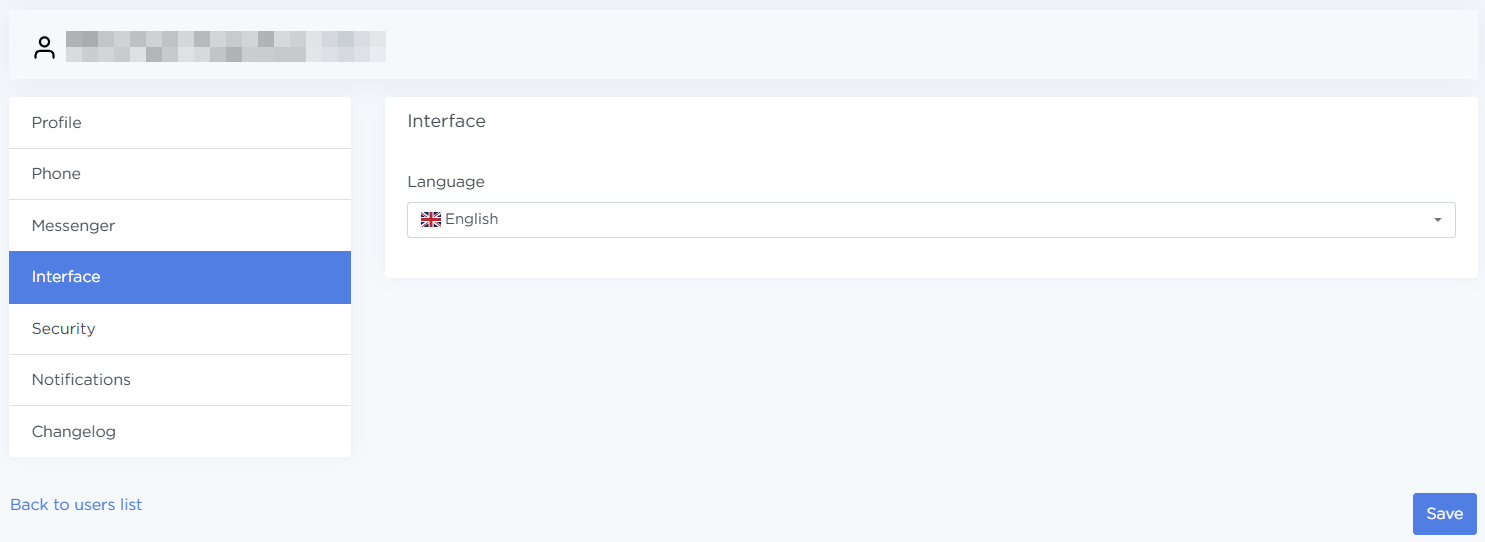
Interface — set the Liner interface language for the selected user and alert display place.
-
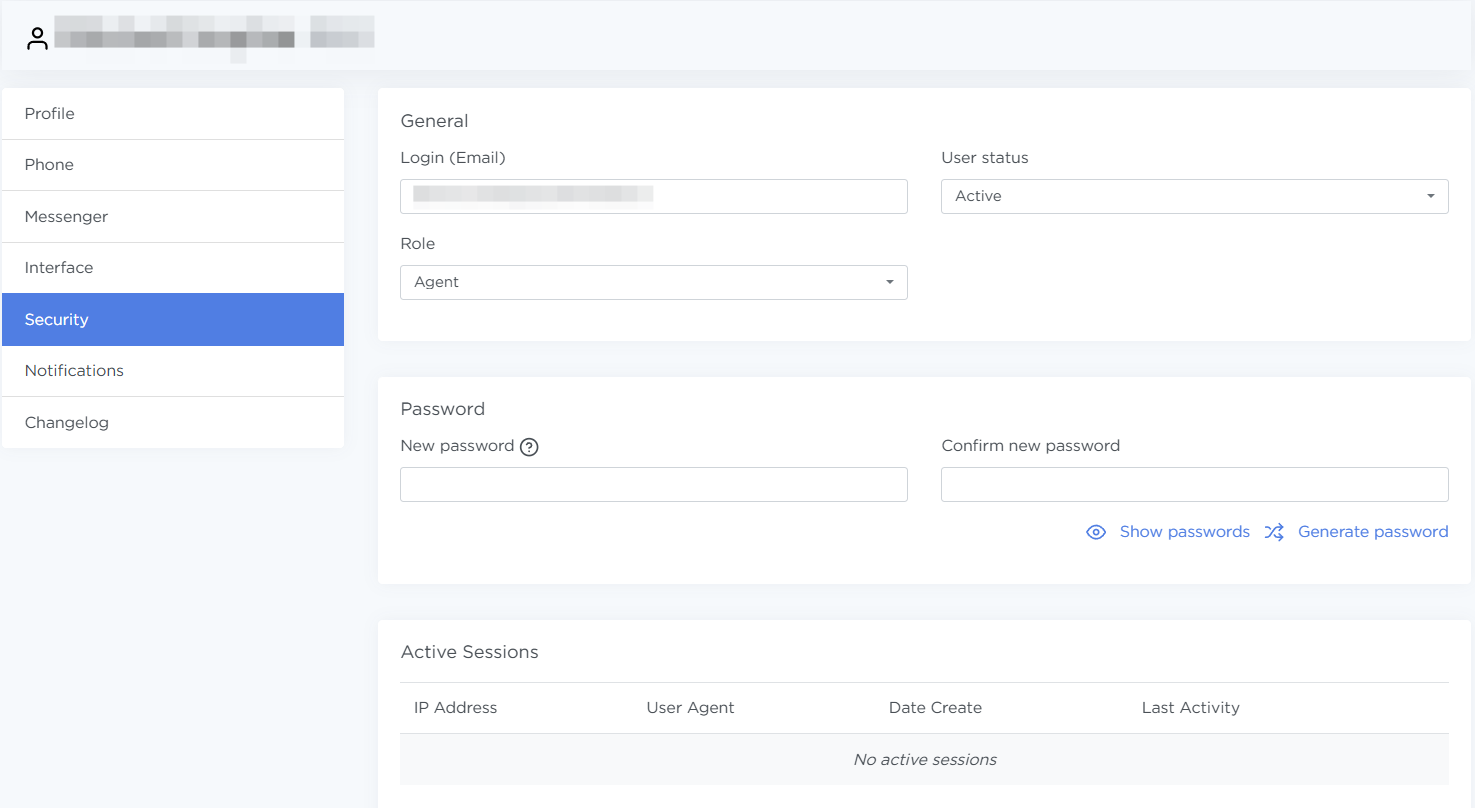
Security — manage security settings and sessions:
-
General:
- Login (Email) — change the user’s login if needed,
- User status — select Blocked to deny the user access to the system,
- Role — change the user’s role if required.
-
Password:
- New password — enter a new password to change the user’s password,
- Confirm new password.
Below are the Show passwords and Generate password options.
-
Active sessions — a list of the user’s current sessions with IP address, device, session creation date, and last activity.
Here you can end a specific session by clicking the trash icon, or terminate all user sessions.
-
-
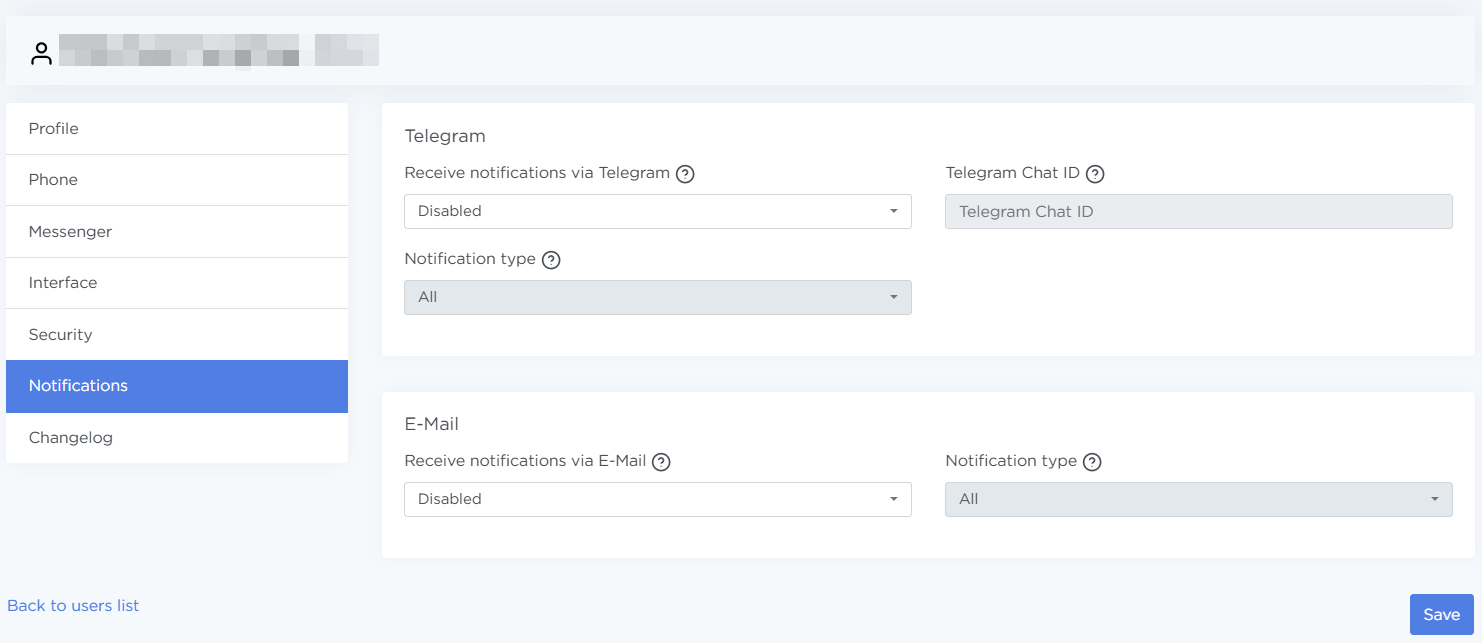
Notifications — configure notification channels and types. Currently, notifications can be sent to Telegram and to the user’s email.
-
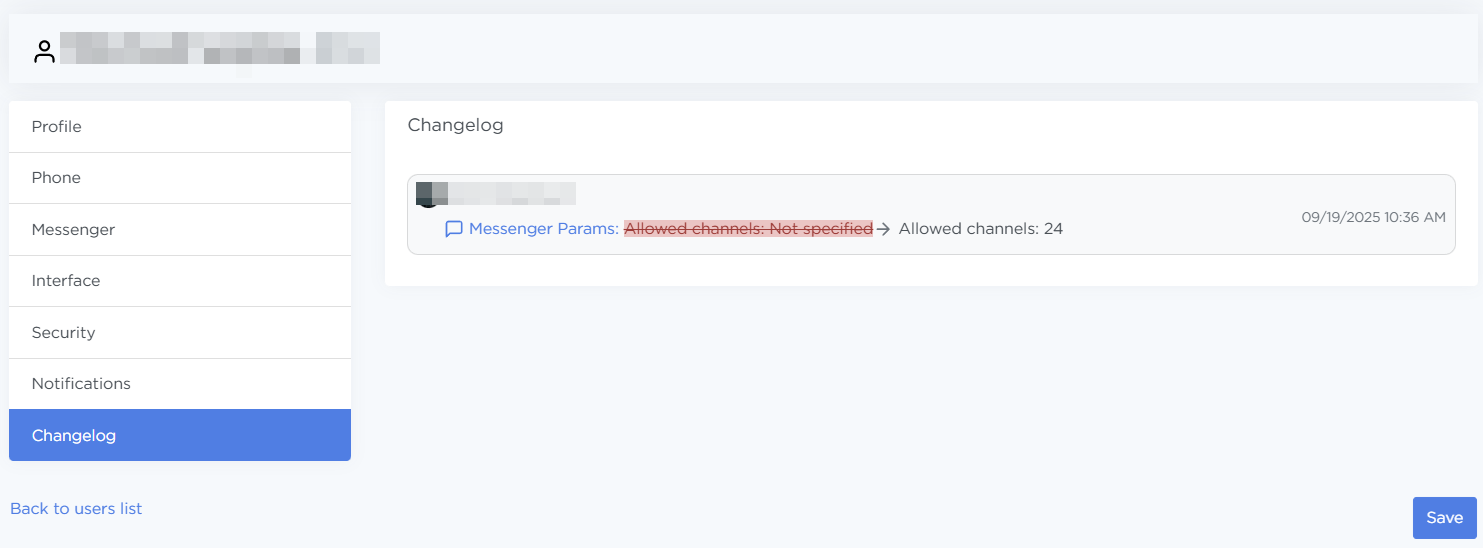
Changelog — shows a list of all changes made to the user profile, including who made the change, when, and what was changed.
To save changes, click Save.
To discard changes, click Back to user list.