Schedule
This article explains how to view and adjust operators’ work schedules in Liner. The Schedule section helps you keep an eye on operator workload and update shifts when needed.
General info
To view operators’ schedules, open Schedule from the left menu. Here you can:
- view the schedule for all operators,
- change the schedule for specific days,
- set a new schedule starting from a selected day,
- export the schedule as a CSV file.
Moderators can edit this section, while operators can view it.
Workload
This part of the section shows how workload is distributed as total working hours for all (or selected) operators within the chosen period.
Note
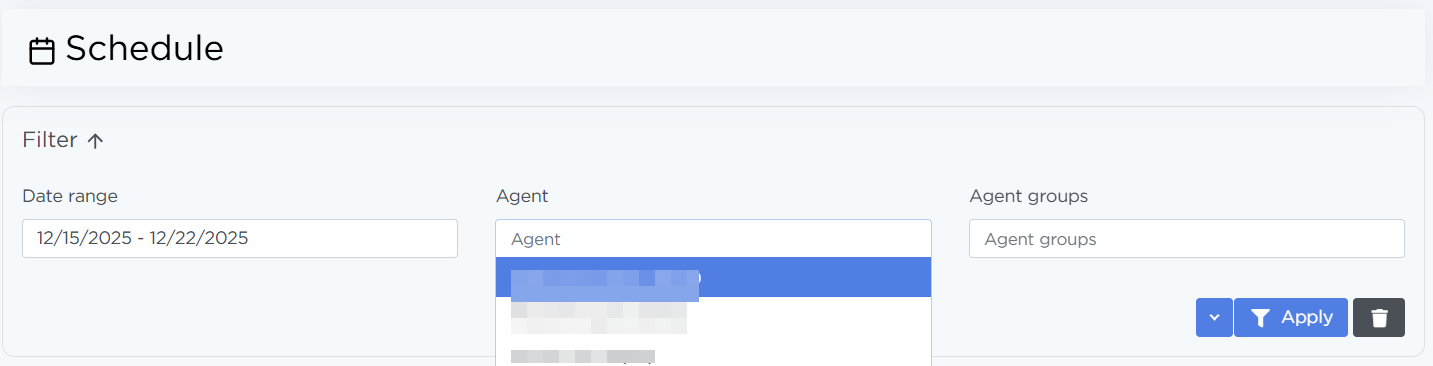
Set the date range and select operators (or an operator group) in Filter, then click Apply:
The cards show which dialing modes the selected operators work in, and the total workload for the selected period in each mode.
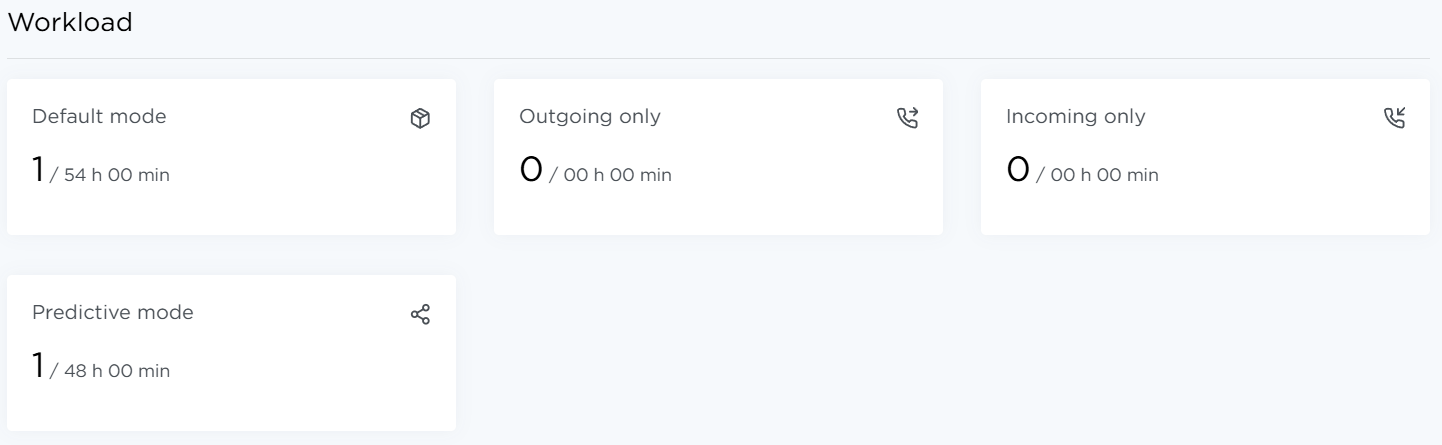
In this example, one operator is selected. They work Default mode for 54 hours and Predictive mode for 48 hours during the selected week. They are not used in Outgoing only and Incoming only modes.
Note
You can change an operator’s work mode by editing their profile in the Phone section.
Agent shift schedule
Below is a summary table for the selected operators. The first column shows the user’s first and last name, followed by cells that mark each day as a workday or a day off.
Each row shows:
- the assigned schedule (for example, Free, 2/2, 5/2, 2/1),
- the call handling mode (default mode is highlighted in green, predictive mode in blue).

Each table cell is clickable. To change an operator’s schedule, click a cell in the required operator’s row. A dialog will open where you can choose an action:
-
Set new schedule from current:
- Choose a new schedule type: free, 5/2, 2/2, 2/1,
- Set working hours for workdays, for example, from 9:00 to 18:00.
-
Change current day: choose whether today is a workday or a day off for the operator.
To export the schedule to XLSX, click Actions.