Quick replies
The Parametres → Quick Replies section is used to create and manage pre-written responses that agents can use during conversations with customers. Quick replies help keep communication consistent, respond to questions faster, and avoid duplicating the same wording across different scripts.
After reading this article, moderators and administrators will learn how to:
- create quick reply categories,
- add and edit individual replies,
- use quick replies in conversation scripts.
What quick replies are for
Quick replies are prompts for agents, grouped into categories. They appear inside conversation scripts and are used as:
- answers to frequently asked customer questions,
- ready-made wording for handling objections,
- reference information (terms, timelines, product details).
When a quick reply is updated, the change is automatically applied to all scripts where it’s used.
List of quick reply categories
Note
A category is a logical group that brings quick replies together by topic and defines how they’re displayed in a script. A quick reply is a specific text prompt that an agent uses during a conversation.
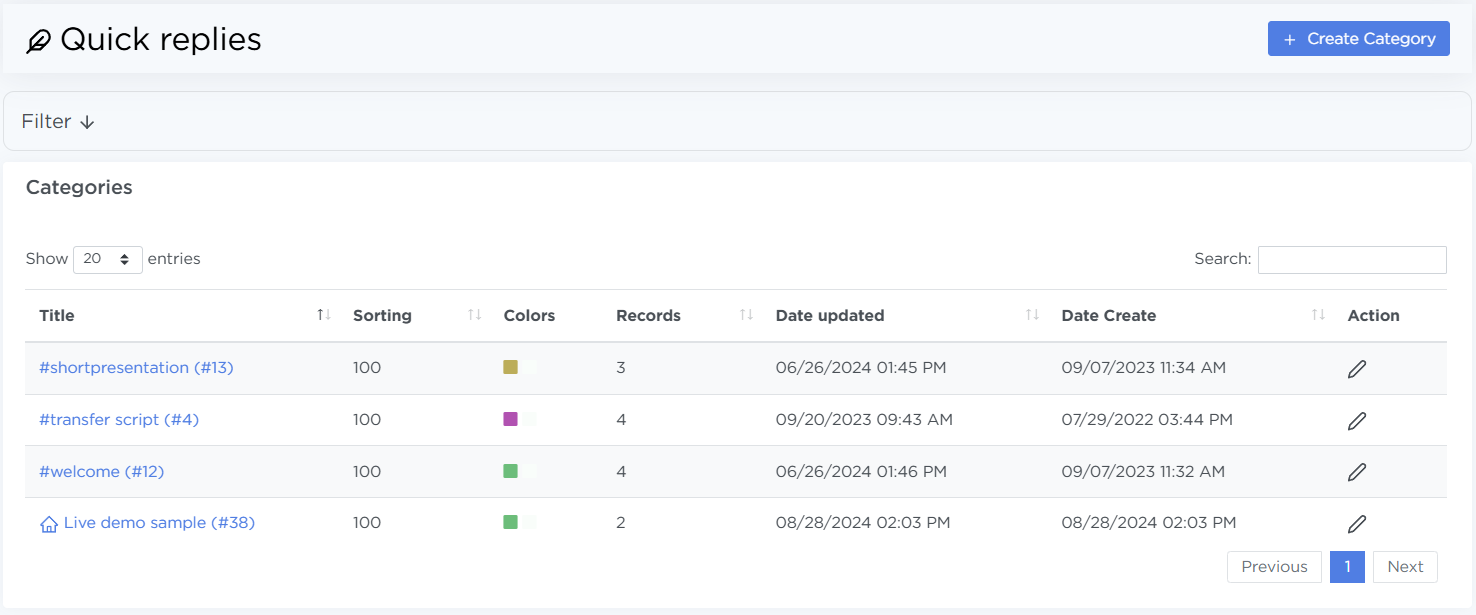
The table shows all created quick reply categories. For each category, you’ll see:
- Title — the visible name of the category,
- Sorting — the order in which the category appears in scripts,
- Colors — the color of the quick reply frame in the script,
- Records — the number of quick replies inside the category,
- Date updated — when the category was last edited,
- Date Create — the date the category was created,
- Action — options to edit or delete the category.
To quickly find the right category, use the filters and the search field.
Creating a quick reply category
To create a new category:
- Click Create category.
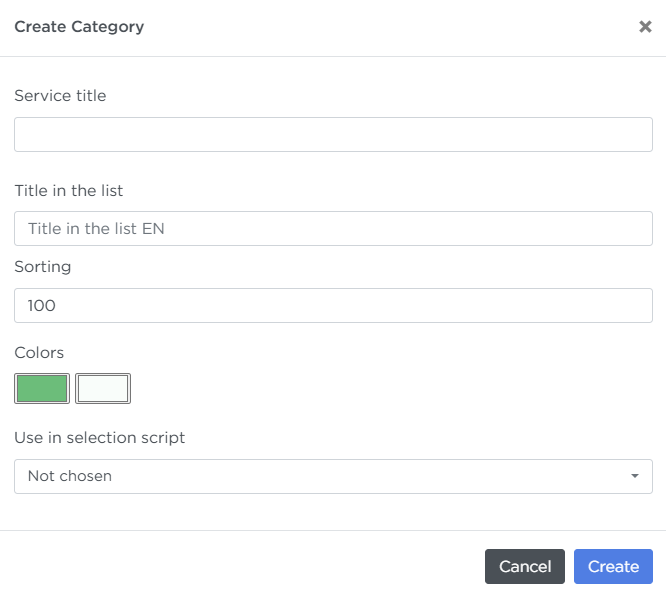
- In the window that opens, fill in the fields:
- Service title — used for internal identification,
- Title in the list — the name shown to agents,
- Sorting — controls the display order of the category,
- Colors — the color of the reply frame in the script, which helps agents quickly navigate categories.
- Save your changes.
The category will appear in the list and become available for use in scripts.
Working with quick replies inside a category
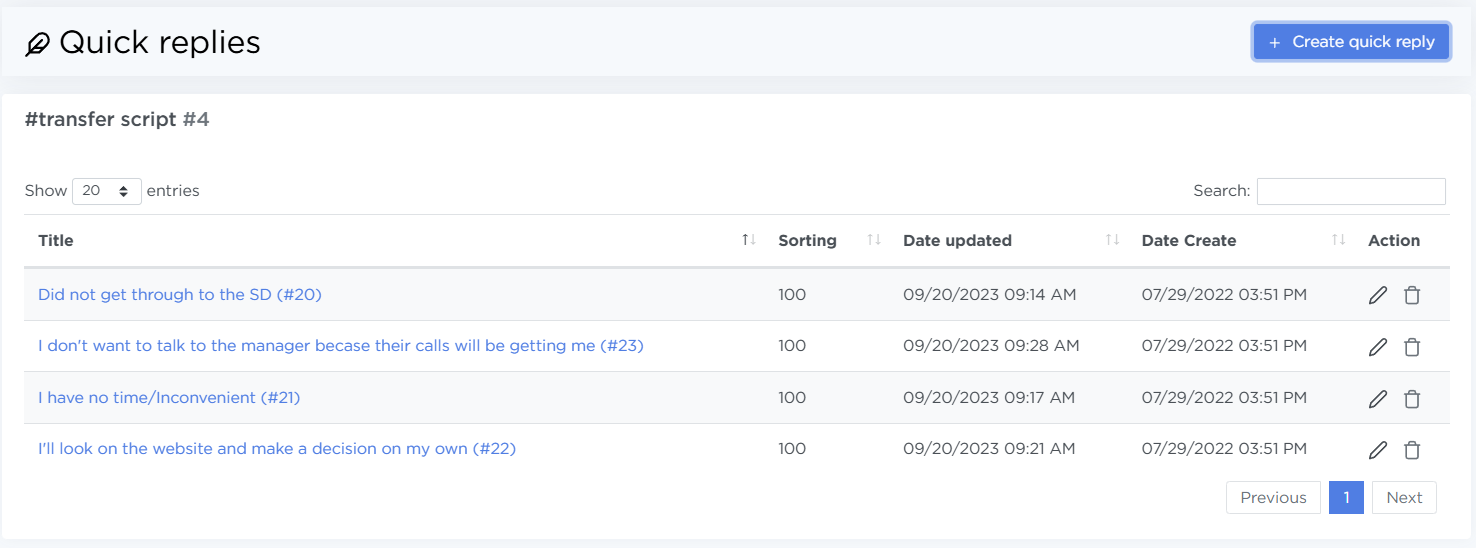
To view the replies, click the name of the required category.
Adding a quick reply
- Click Create quick reply.
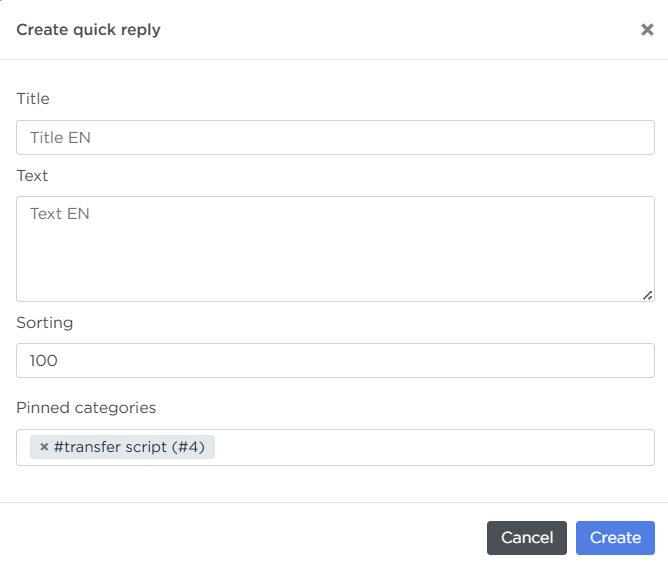
- In the pop-up, specify:
- Title — a short description of the question or situation,
- Text — the actual response or prompt for the agent,
- Sorting — controls the display order of the reply in category,
- Category — the category the reply belongs to.
- Save the reply.
Editing and deleting
- To change the text or name, click the pencil icon.
- To delete a reply, click the trash icon and confirm the action.
Using quick replies in conversation scripts
Quick replies are added inside conversation scripts:
- in the Welcome, Short presentation, Transfer script, Basic Information, and Add. information blocks;
- agents see categories and replies during the call;
- hovering over a reply shows its text.
This helps agents quickly navigate the conversation and stick to the intended dialogue flow.
Setup recommendations
- Create separate categories for different tasks: objections, pricing, terms, technical questions.
- Use clear and short reply names so agents can quickly find what they need.
- Avoid duplicating the same wording across categories — it’s better to reuse one reply in multiple scripts.
- Regularly review and update replies when terms or workflows change.