Orders
General Information
Page Orders lists all orders and provides filters and search tools. After reviewing this section, you’ll understand how to:
- filter the list of orders,
- open an order card,
- create a new order,
- update an existing order, including telephony settings, call schedule, operators, and financial parameters.
Viewing the List of Orders
Filters
Filters help you quickly narrow down the list based on key parameters. Filter values come from the data stored inside each order.
Open the filter panel, choose the parameters you need, and click Apply.
If you also want to filter archived orders, enable Show archived orders.
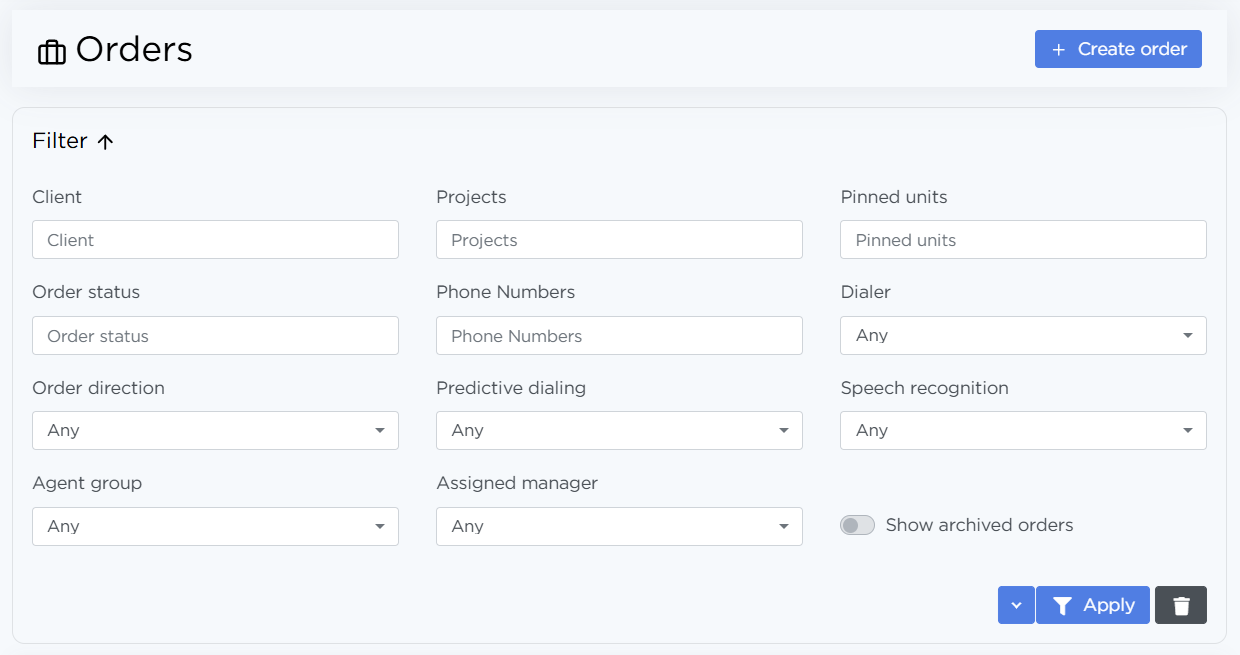
To save a specific filter set for future use, click the down arrow and then Save preset. This saves the selected filters for the current user so they can be applied instantly without reconfiguring them each time.
Order List
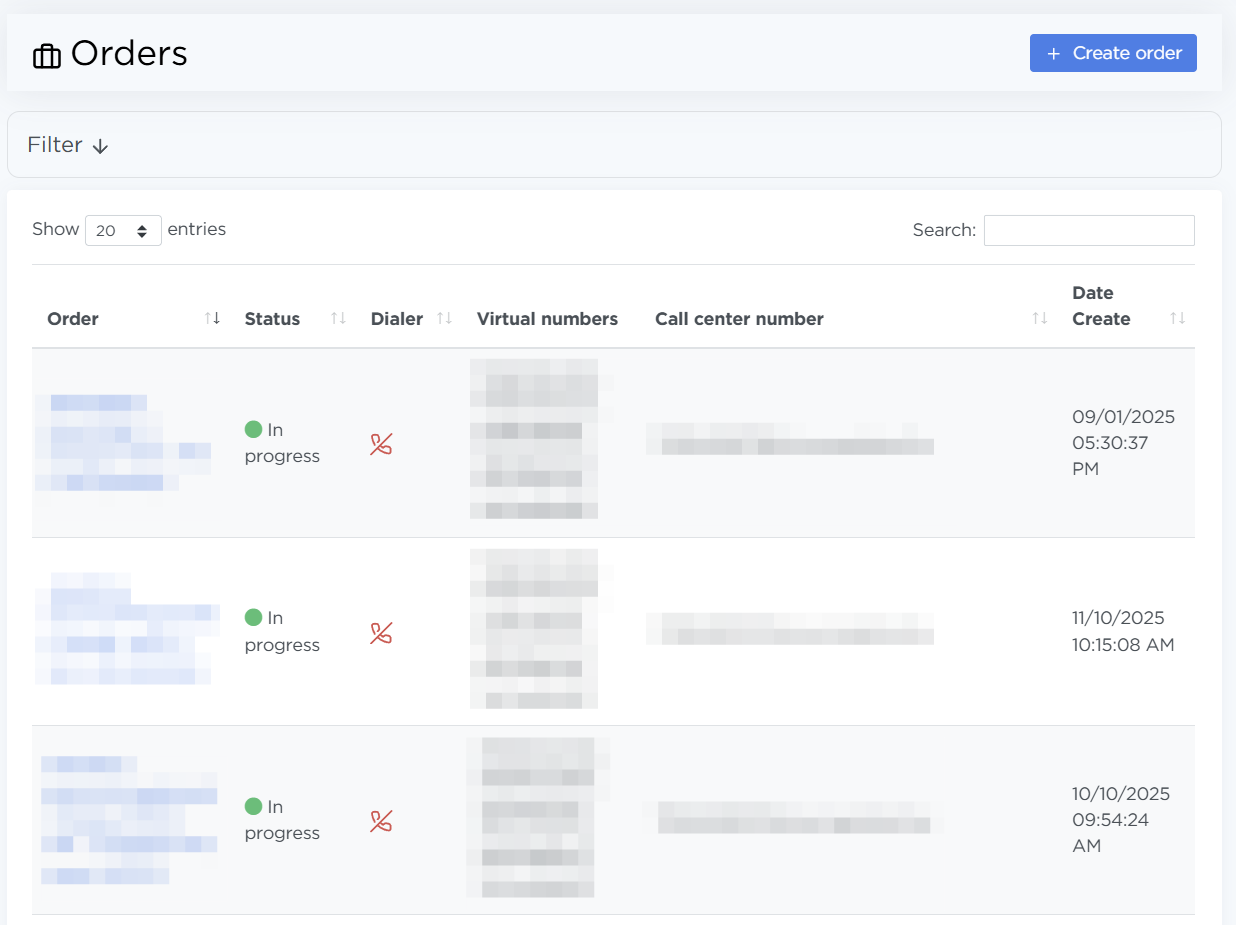
Each order in the list displays:
- Order — a clickable name that opens the order’s detailed page,
- Status — the current status of the order,
- Dialer — shows whether auto-dialing is enabled for the order,
- Virtual numbers — numbers used for outbound calls,
- Call center number — the main number used to transfer a lead to the sales team,
- Date Create — shown in
mm/dd/yyy hh:mm:ssformat.
Creating an Order
To create a new order, click Create order.
For more details, see the 👉 Quick Start page.
Managing an Order
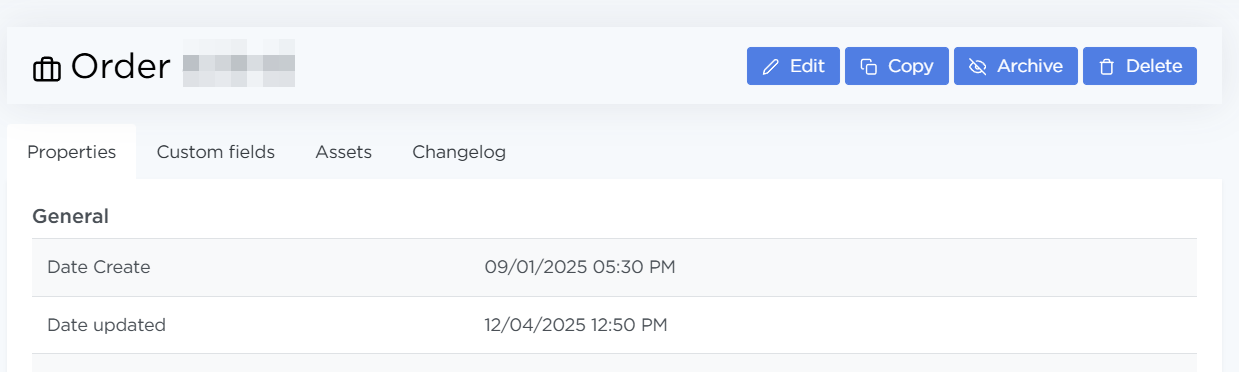
- To view an existing order, click its title in the list:
- The Parameters tab shows all order settings,
- The Custom fields tab shows all custom fields configured for the order,
- The Assets tab contains files linked to the order, which operators can send via messenger as short links,
- The Changelog tab records all shanges made to the order,
- To edit an order, click Edit.
- To create a new order based on the current one, click Copy.
- To move an order to the archive, click Archive.
- To delete an order, click Delete.