Leads
The Leads section is used to work with all incoming customer requests in Liner. Here you can find a specific lead, check its status, see how it was handled, and open the full lead card with all details.
On the Leads page, you can:
- find a lead by phone number, order, or status,
- check whether the lead was processed and with what result,
- understand if a follow-up call is needed,
- open the lead card to review call and message history.
How to find the right lead
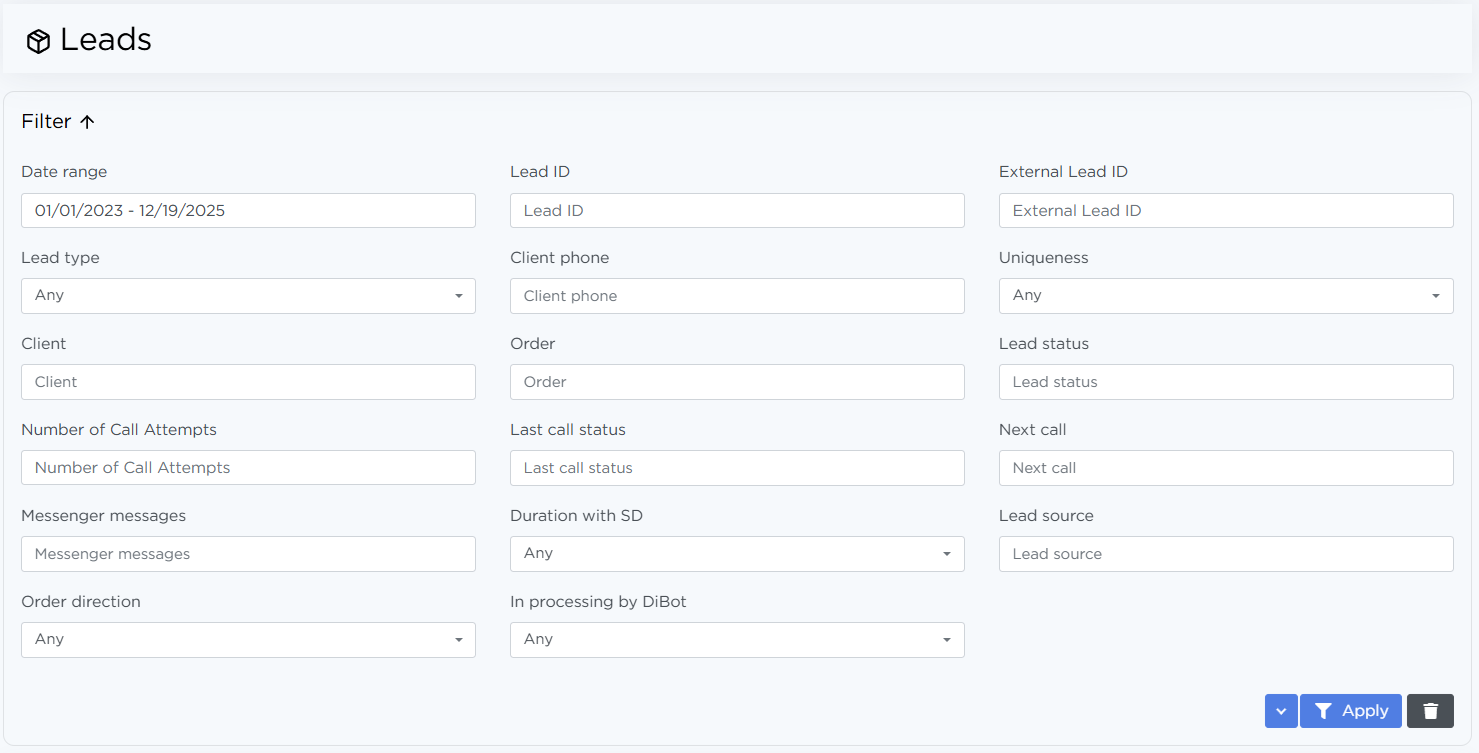
At the top of the page, there is a filters panel. It helps quickly narrow down the list of leads using the parameters you need.
Most commonly used filters are:
- Date range — when the lead was created,
- Client phone — search by a specific phone number,
- Order — the product or service the lead came from,
- Lead status — the current processing result,
- Last call status — how the most recent call attempt ended.
After selecting the filters, click Apply — the list will update.
If you no longer need the filters, click Clear.
To avoid setting the same filters every time, save them using the Save preset button.
Lead list
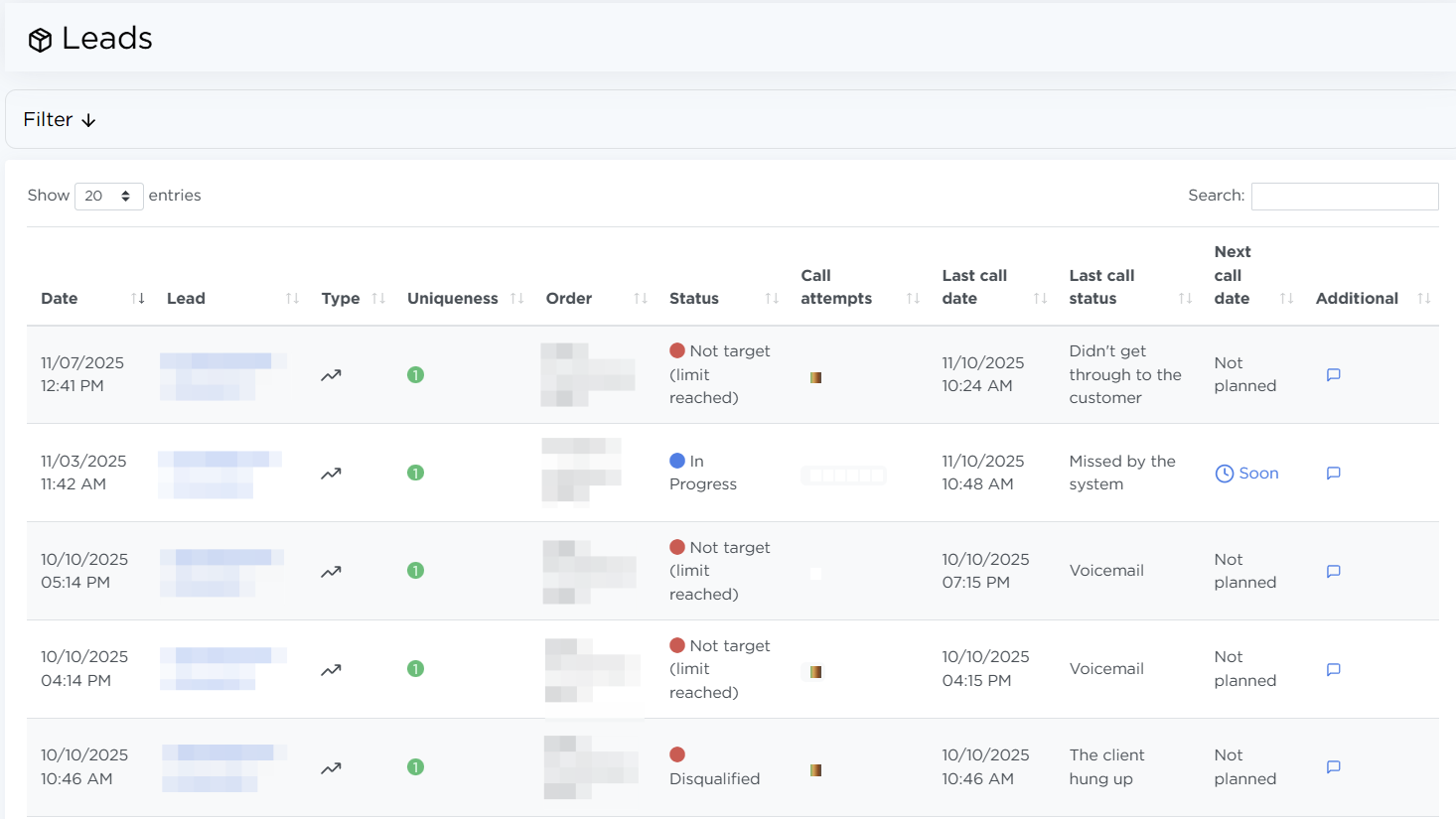
Below the filters, the lead list is displayed. Here you can:
- view all leads that match the selected filters,
- use the table search,
- change how many rows are shown per page.
Each row represents a single lead. Clicking the lead number opens the lead card.
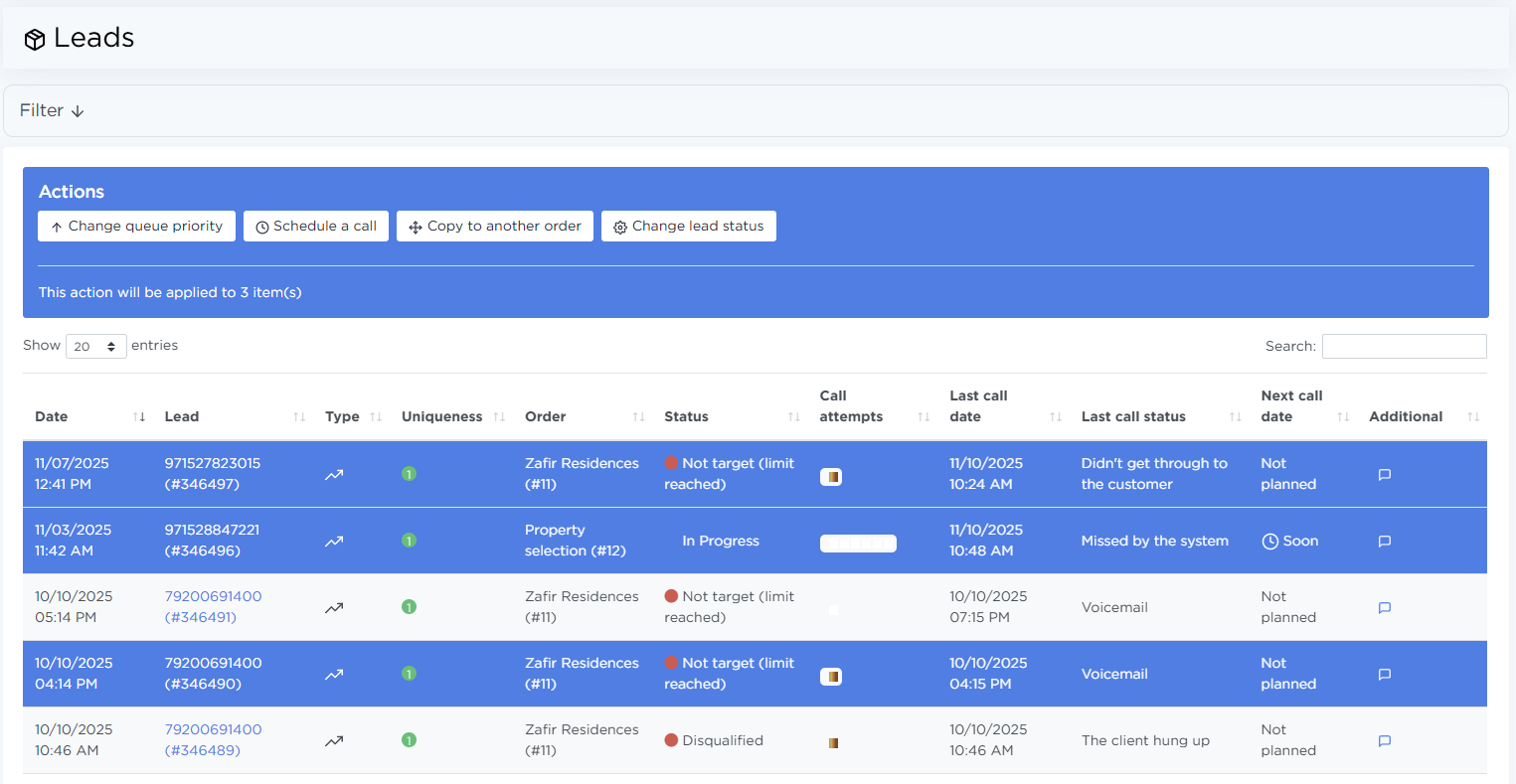
When you click a row, a quick actions panel appears. Hold Ctrl to select multiple leads, or hold Shift to select a range. You can then apply actions to all selected leads at once. Available actions include:
- changing lead priority in the queue,
- scheduling a call while ignoring call intervals,
- copying selected leads to another order,
- changing the status of selected leads.
Lead statuses
A lead’s status shows the result of its processing based on the last selected call status:
- Target statuses — the lead was successfully processed and the work is complete,
- In progress — a follow-up call or waiting is required,
- Not target statuses — the lead is not relevant and will not be processed further.
The status makes it easy to see whether a lead still needs attention.
Lead card
When you open a lead, you get access to detailed information, including:
- detailed data such as creation date, source, lead status, and more,
- the script used during the conversation,
- call history,
- lead change history.
Open the lead card to understand exactly what happened with the lead and why it is in its current state.
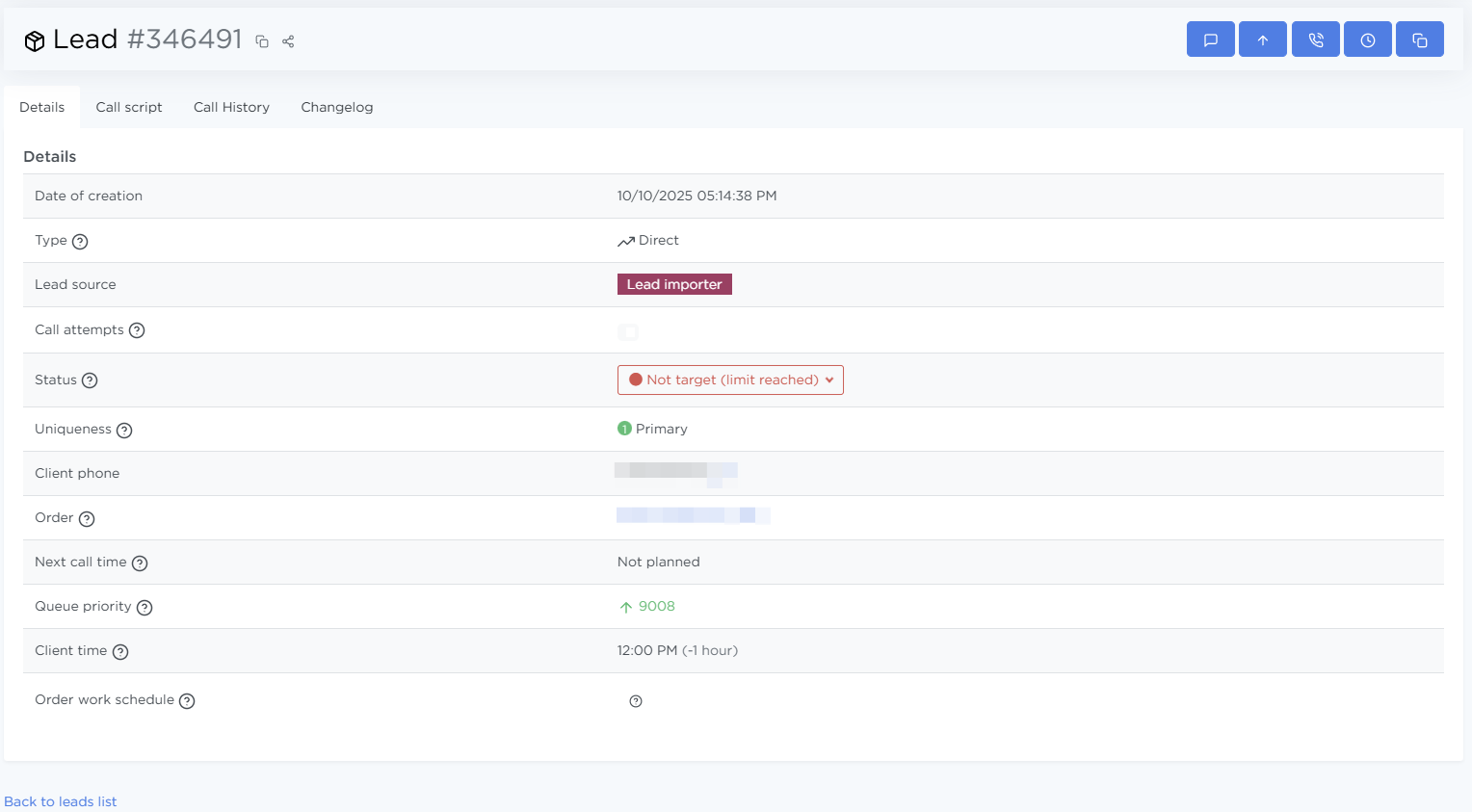
From the same page, you can also perform several actions using the buttons at the top:
- open the messenger to view or continue the conversation,
- change the lead’s priority in the call queue,
- call now,
- schedule a call,
- copy the lead to another order.