Lead Statuses
Note
A lead status shows where a lead currently is in the overall processing flow. It reflects the state of work with a specific client request.
For more about how call statuses differ from lead statuses, check 👉 Call Statuses vs. Lead Statuses.
Liner includes a set of built-in lead statuses you can use right away. But as your workflows grow, you might need more detailed statuses — for example, to clarify why a lead was marked as non-target.
To create and manage lead statuses, go to Parameters → Lead statuses.
General Information
This page displays all lead statuses grouped into three categories. After reading this section, you’ll understand how to:
- create a new lead status and edit existing ones,
- move a status to a different category.
Managing Lead Statuses
Lead Status List
All lead statuses are divided into three categories:
- In progress,
- Target,
- Non-target.
Each category contains only system statuses by default. System statuses cannot be moved to another category, but you can rename them, change their color, or duplicate them to create custom user statuses.
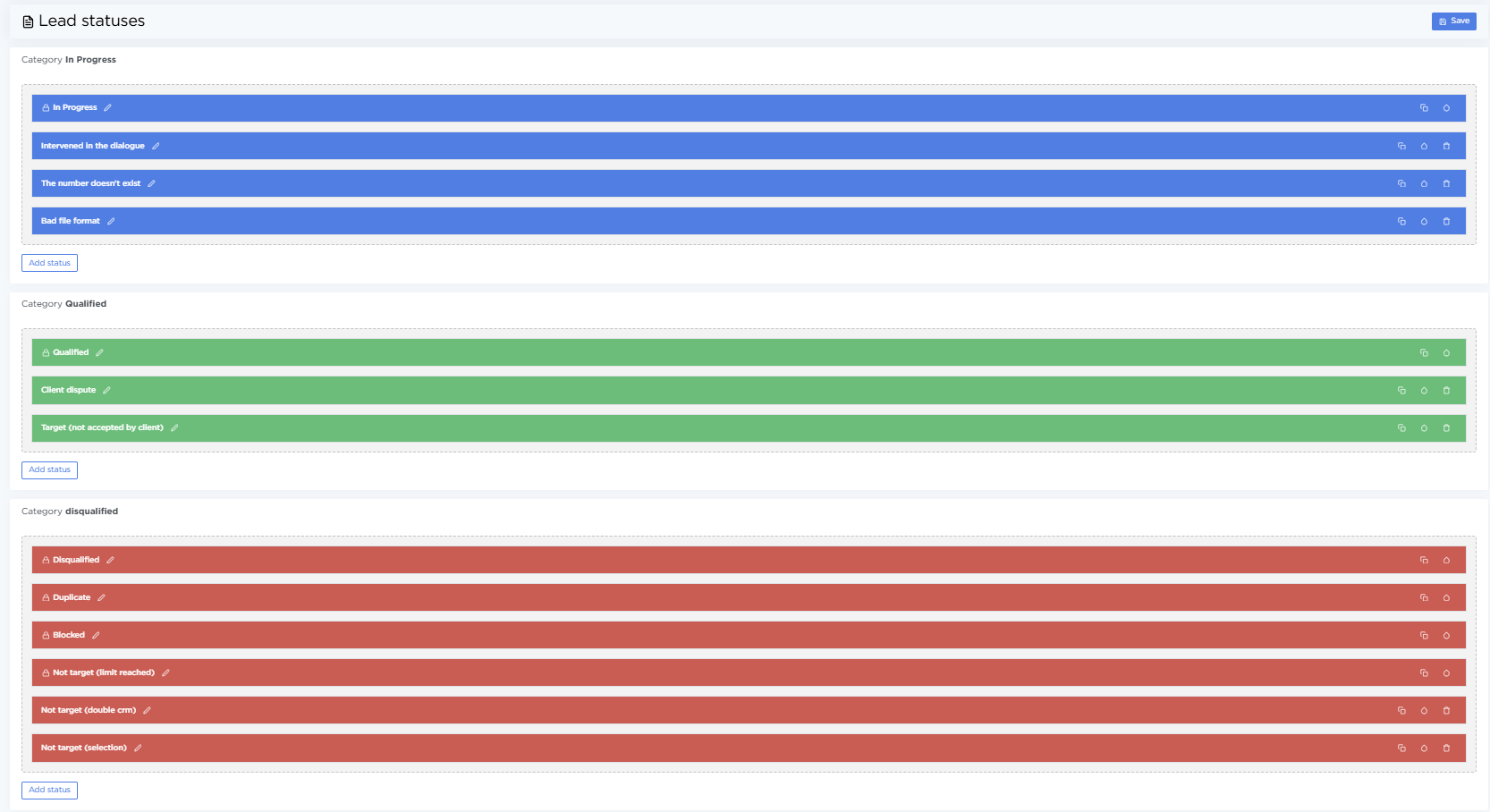
Creating and Editing a Lead Status
-
To create a new lead status in any category, click Add status, enter its Title in the required language, and choose a color.
You can add several statuses at once across different categories.
-
To move a status to another category, simply drag and drop it.
-
To change a status title, click the pencil icon.
-
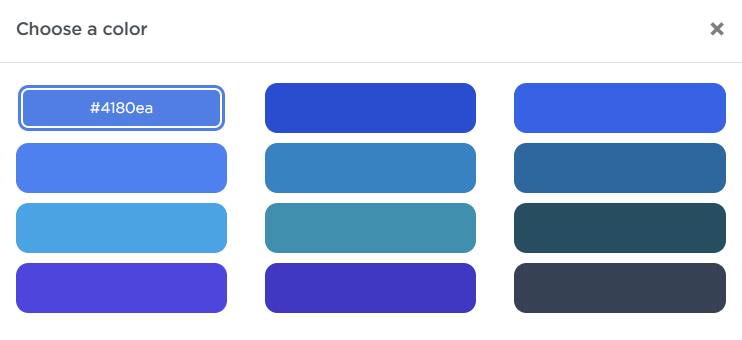
To change a status color, click the droplet icon and select a color from the palette.
Click Save to apply your changes.