Lead Import
This article explains how to manually create leads using the Lead importer tool in Liner.
What the importer can do
On the import page, leads are created from a list of phone numbers. Use the import tool when you need to process:
- previously collected no-answer databases,
- third-party contact lists,
- any sets of numbers that must be manually added for calling.
All data is added to the system and immediately placed into the dialing queue.
How to import leads
Go to Utilities → Lead importer.
Preparing
-
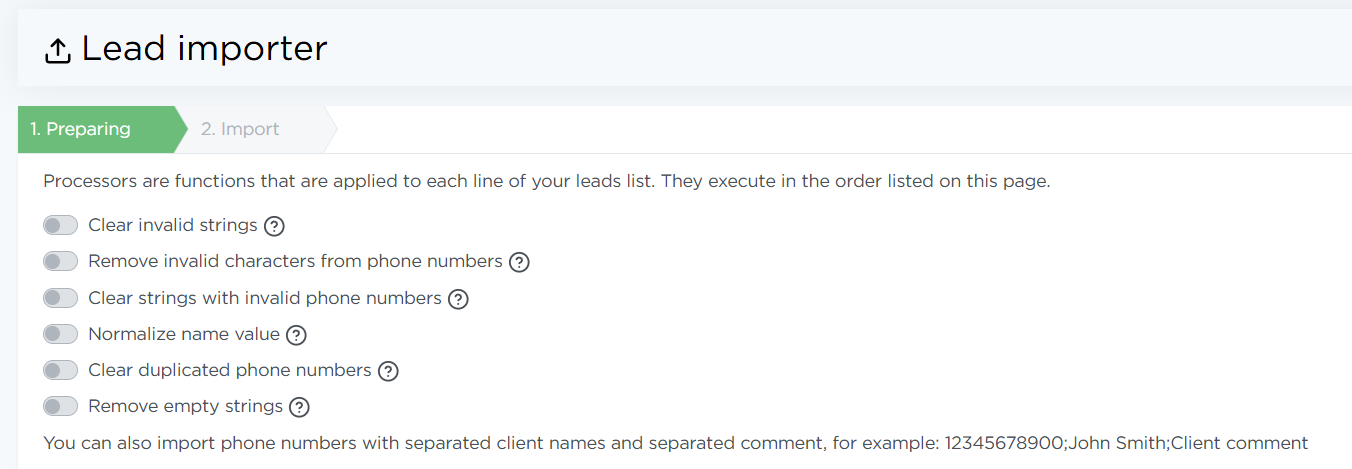
Select the processors that will help you prepare the lead list for import.
Note
Processors are automated transformations applied to each line of the list. They normalize the data before import.
Enable the toggles for the processors you need:
- Clean invalid strings — deletes lines that don’t match the expected format
Phone number;Name;Comment - Remove invalid characters from phone number — removes dashes, brackets, and other symbols to convert numbers into the standard format
12345678900 - Clear strings with invalid phone numbers — deletes rows where the phone number doesn’t match the standard format (extra/missing digits, unknown country codes, etc.). When enabling this processor, select
UAEor keepAny country - Normalize name value — converts names to the standard format
John Doe(instead ofjohn doeorJOHN DOE) - Clear duplicated phone numbers — deletes rows with duplicate numbers
- Remove empty strings — cleans up empty entries from the list
- Clean invalid strings — deletes lines that don’t match the expected format
-
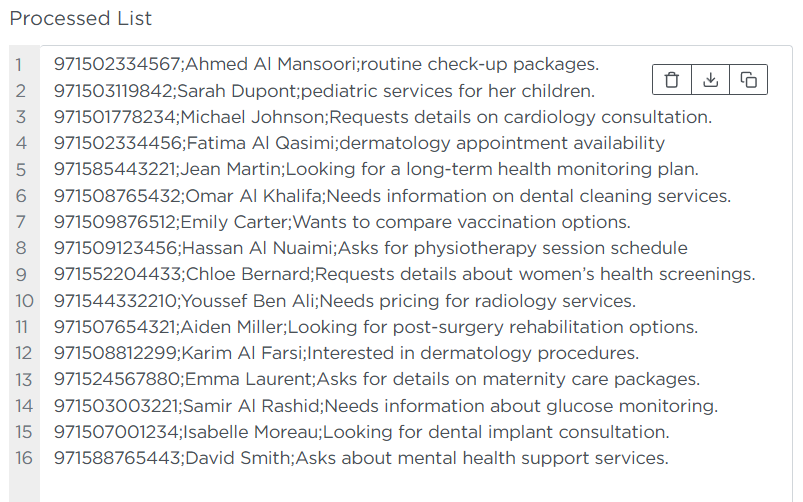
Paste your lead list into the Source List field using the format
Phone number;Name;Comment.
-
Click the green >> processing button so the processors can prepare your list.
The final processed list will appear in the Processed List field.Note
You can delete leads from this field, download them as CSV, or copy them — use the buttons above the field.
-
Click Next to proceed to the import step.
Import
Fill in the import parameters:
-
Order — select the order under which the new leads will be created. You can choose only one order.
Note
The selected order determines processing logic, dialing rules, conversation scripts, and lead priority.
-
Lead status — choose the status that will be assigned to all imported leads.
-
Lead type — choose whether the imported leads should be Direct or Selection.
-
Lead priority — keep the standard priority or enter a number to increase or decrease the priority of the imported leads.
-
Call scheduling — specify when dialing should begin.
Important
Dialing will start according to both the time you choose and the work schedule settings.
Click Start import to load the leads into the dialing queue.