Call History
The Calls → Call History section is used to review and analyze all completed calls in the system — both inbound and outbound. After reading this article, moderators and senior agents will be able to check:
- when a call happened and which lead it was linked to,
- which agent handled the call,
- how the call ended,
- how long the conversation lasted,
- whether a call recording is available.
The data in this section is generated from saved call information after each call is completed.
How call history is usually used
Use this section to:
- review agent performance,
- find a specific call by phone number or order,
- investigate disputed or unclear lead cases,
- listen to call recordings,
- analyze reasons for no-answers and refusals.
Filters
At the top of the page, there’s a filter panel that helps narrow down the call list. The most commonly used filters are:
- Date Range — filter calls by date and time,
- Order — calls related to a specific project or offer,
- Agent — calls handled by selected agents,
- Client phone — search calls by phone number,
- Call direction — inbound or outbound,
- Lead status / source / lead type — for more detailed analysis,
- Lead ID — search for a lead by its ID. Enter
0in this field to find all unknown inbound calls. These appear when a call comes in from an unknown number (not linked to any lead) and no order has rules for handling unknown inbound calls.
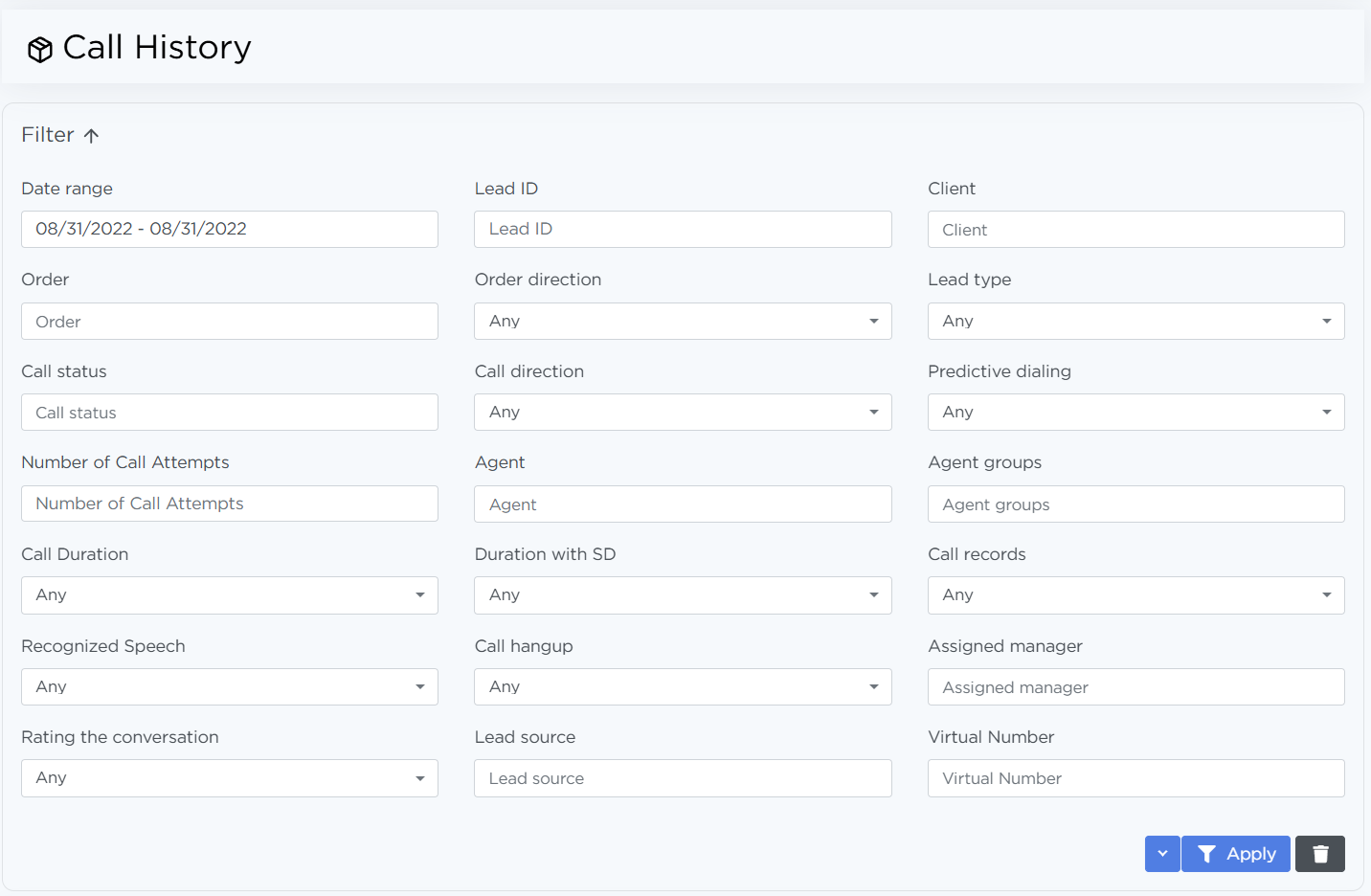
After setting the filters, click Apply. Click the down arrow → Save preset to save the selected filters for the current user.
Call list
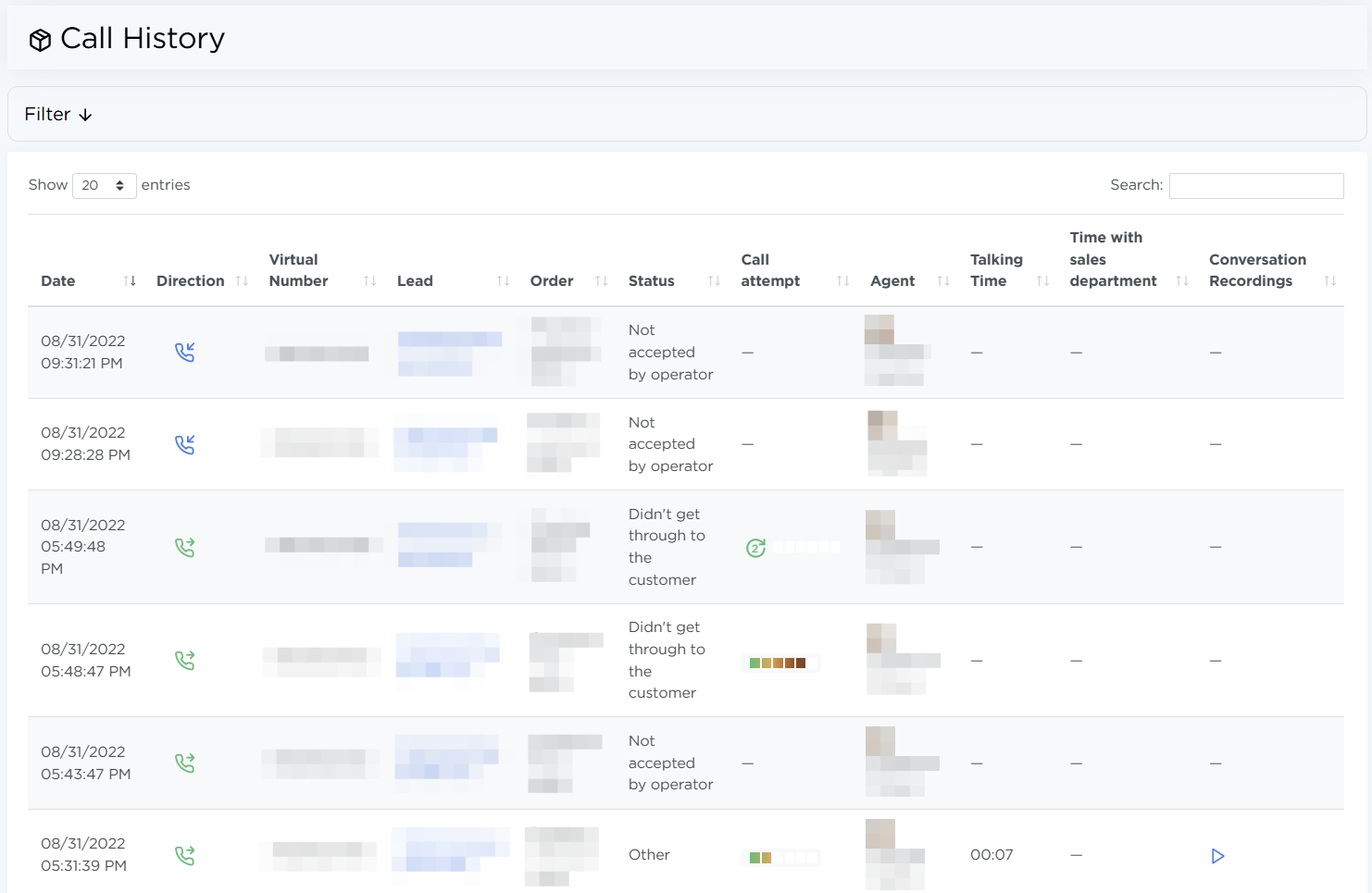
Calls can be searched using the search field and sorted by any column. For each call, the list shows:
- Date — the date and time when the call was initiated,
- Direction — the type of call: inbound or outbound,
- Virtual number — the number the call was made from,
- Lead — the lead’s phone number and ID. The number is clickable and opens the lead,
- Order — the full order name and its ID,
- Status — the call status (result of the conversation or call attempt),
- Call attempt — the number of call attempts for the lead. Hover to see the current and maximum attempt,
- Agent — the full name of the agent who handled the call,
- Talking time — the actual time spent talking to the client; counted only if the client answered,
- Time with sales departament — the time the client spent talking to the sales team, if the call was transferred,
- Conversation recordings — a play button for the call recording. Shown only if a conversation with the client took place.
Pay attention
For security reasons, senior agents do not see the virtual number or the client’s phone number.
Listening to a call recording
To open a recording:
- Find the required call in the table.
- Click the play icon in the Conversation recordings column.
- In the opened window, play the needed call attempt.
Note
If there’s no recording, it means the conversation with the client did not take place.
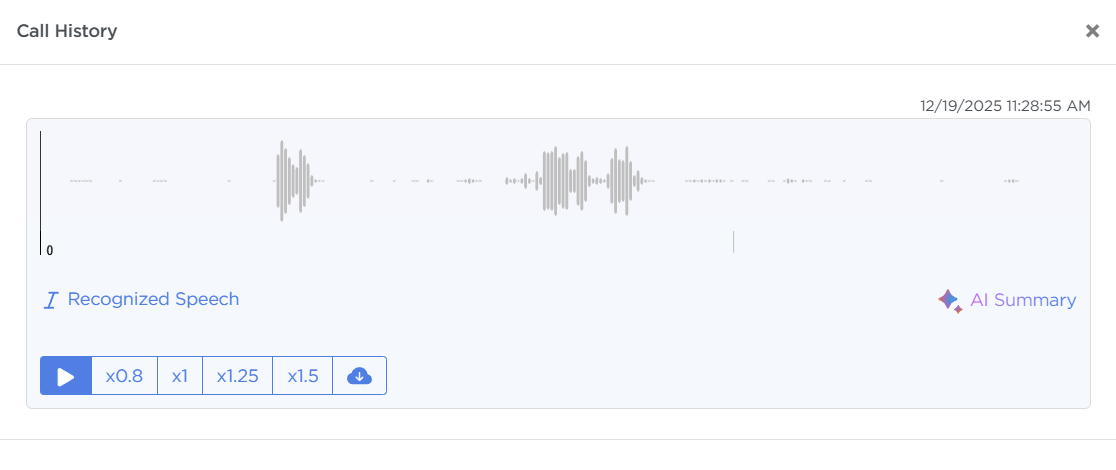
Here you can listen to the call at speeds from 0.8 to 1.5, download the recording, open the conversation as a transcribed text, or view an AI-generated call summary based on speech recognition.
The transcript works like karaoke: the text is highlighted in sync with the audio. Click any word in the text to jump to the corresponding moment in the recording.