Agent Groups
The Parametres → Agent Groups section is used to create and manage lists of agents that are then applied to orders. Groups make it easy to assign, replace, or redistribute agents without editing each order individually.
In this section, you can:
- group agents by how they work (project, shift, or direction),
- speed up order setup,
- centrally manage agent assignments.
How agent groups work
An agent group is a list of agents linked to an order. The workflow is simple:
- An agent group is created.
- The group is selected in the order settings: Order → Telephony → Agent Groups
- All agents in the group get access to process leads for that order.
- When the group membership changes, updates are automatically applied to all orders that use this group.
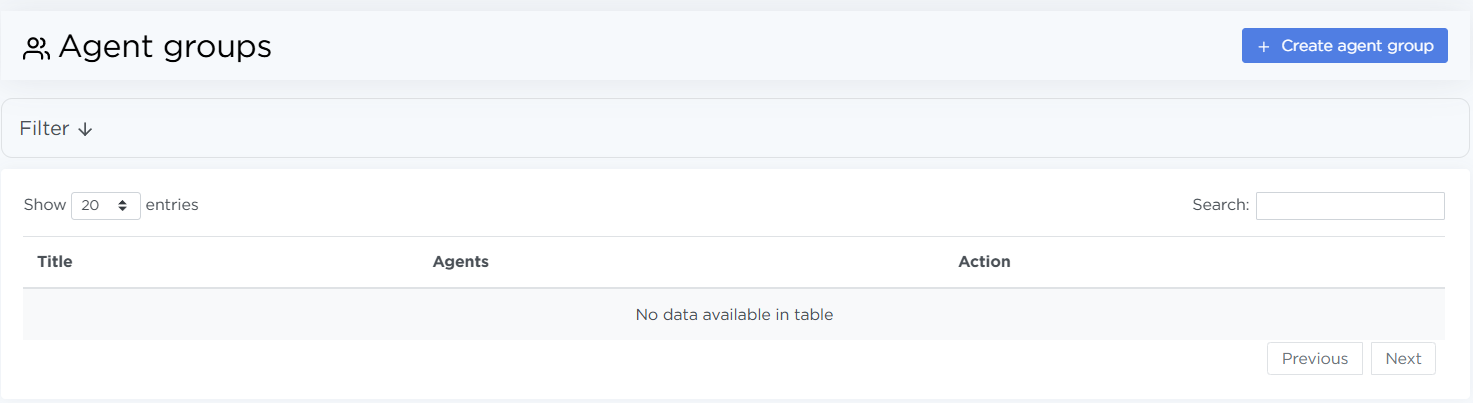
Agent groups are especially useful when:
- several orders are handled by the same set of agents;
- an agent needs to be replaced quickly across multiple orders;
- agents are split by shifts, projects, or business directions.
Creating and managing agent groups
To create a new group:
- Open Parametres → Agent Groups.
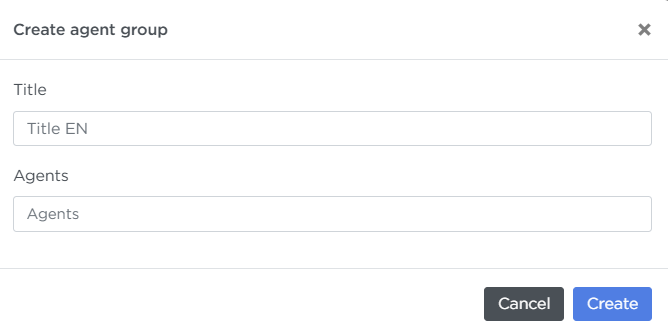
- Click Create agent group.
- Specify:
- the group title,
- the agents to include in the group.
- Save the changes.
Once saved, the group becomes available in order settings.
To edit a group, click the pencil icon. When editing, you can:
- change the group title,
- add agents to the group,
- remove agents from the group.
All changes are applied immediately to every order that uses this group.
To delete a group, click the trash icon. When a group is deleted:
- the group is removed from the system,
- it is no longer used in any orders where it was previously selected.
Pay attention
It’s recommended to review related orders before deleting a group to avoid accidentally removing agents from lead processing.